flag English ▼
RU English
FR Français
IT Italiano
DE Deutsch
ES Español
PL Polski
CS Čeština
UK Українська
KZ Қазақ
AZ Azərbaycan
RU Русский
LT Lietuvių
LV Latviešu
ET Eesti
BE Беларуская

Installation and configuration instructions

Please follow these steps carefully to ensure the app works properly and is not blocked by the system in the background.

01

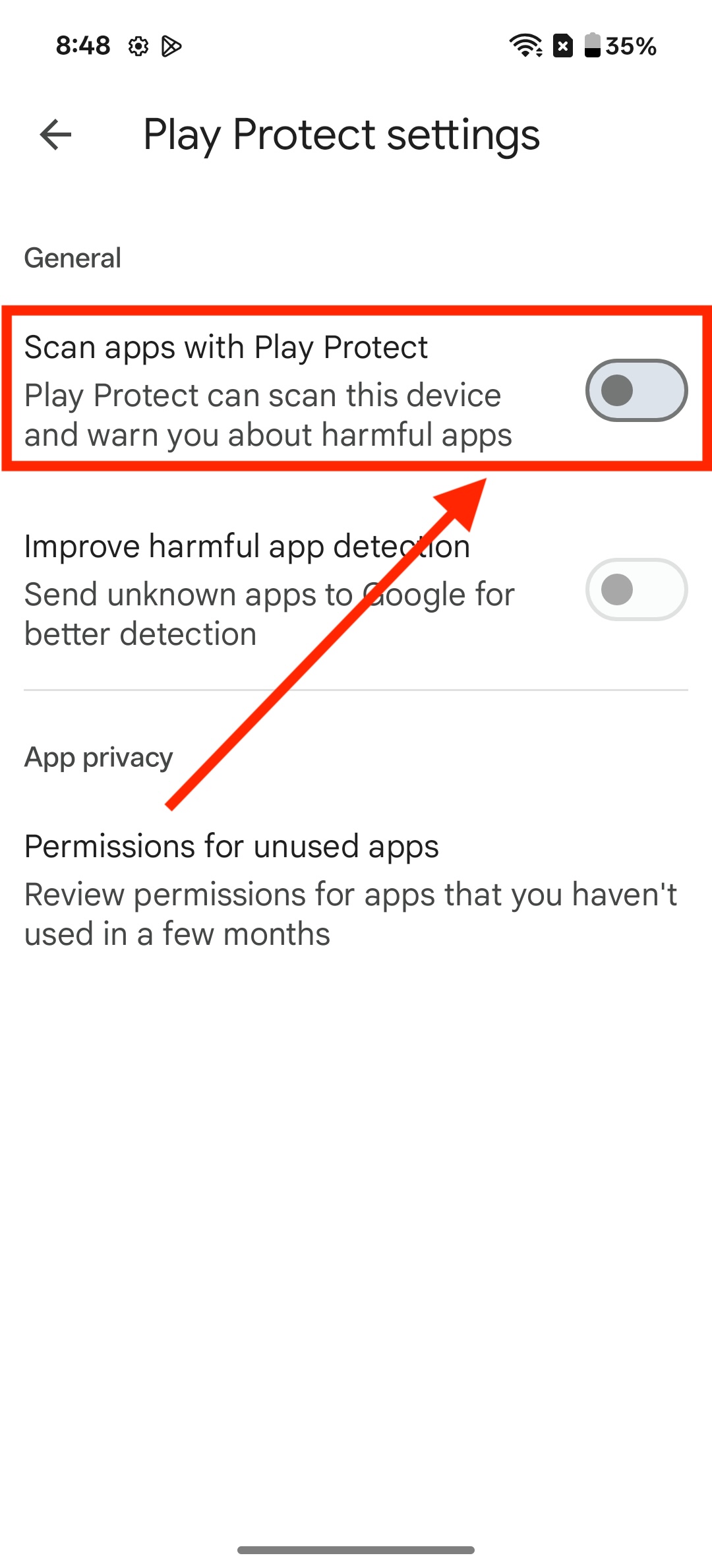
Disabling Google Play Protect

This step can be skipped if your device does not have Google services or has a custom firmware.

Disabling Play Protection during installation is a completely normal and safe action.

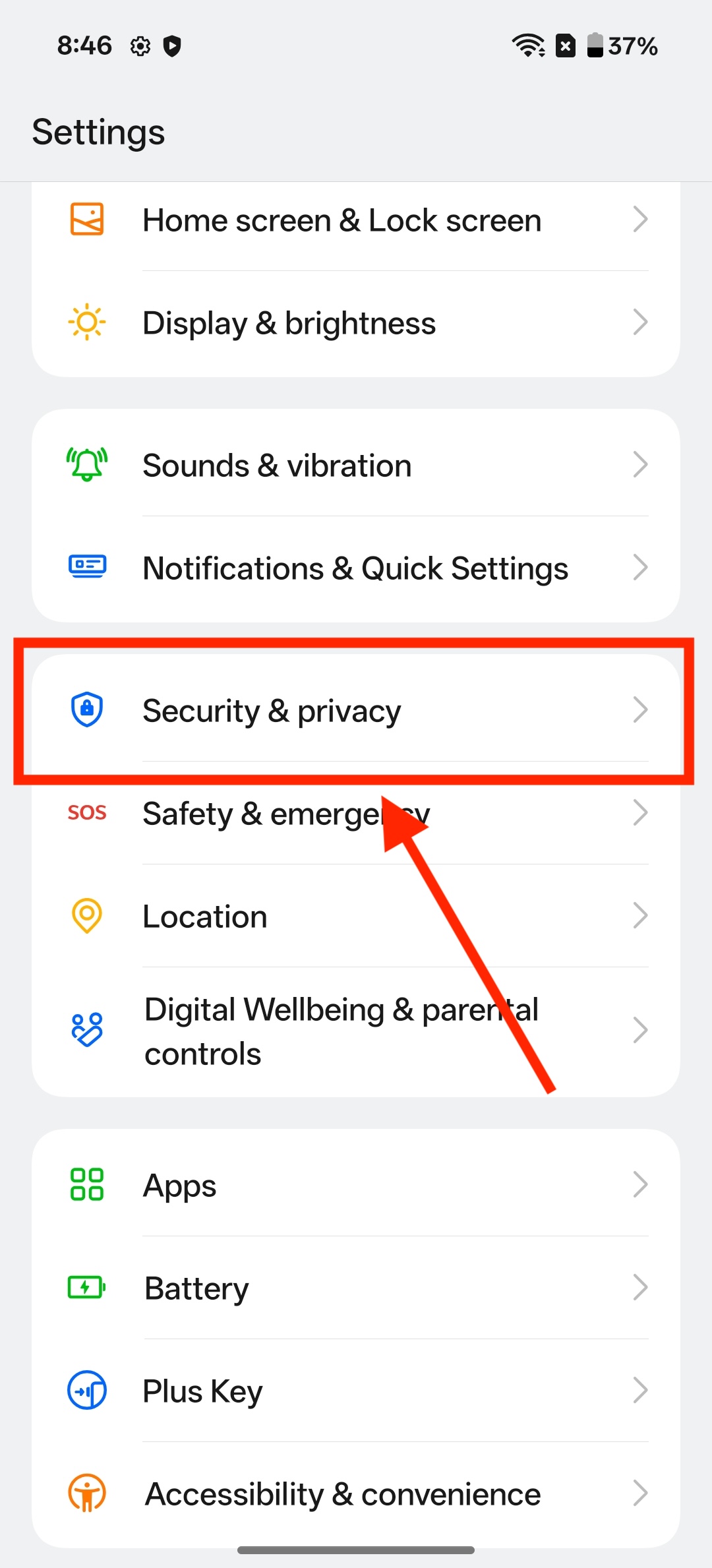
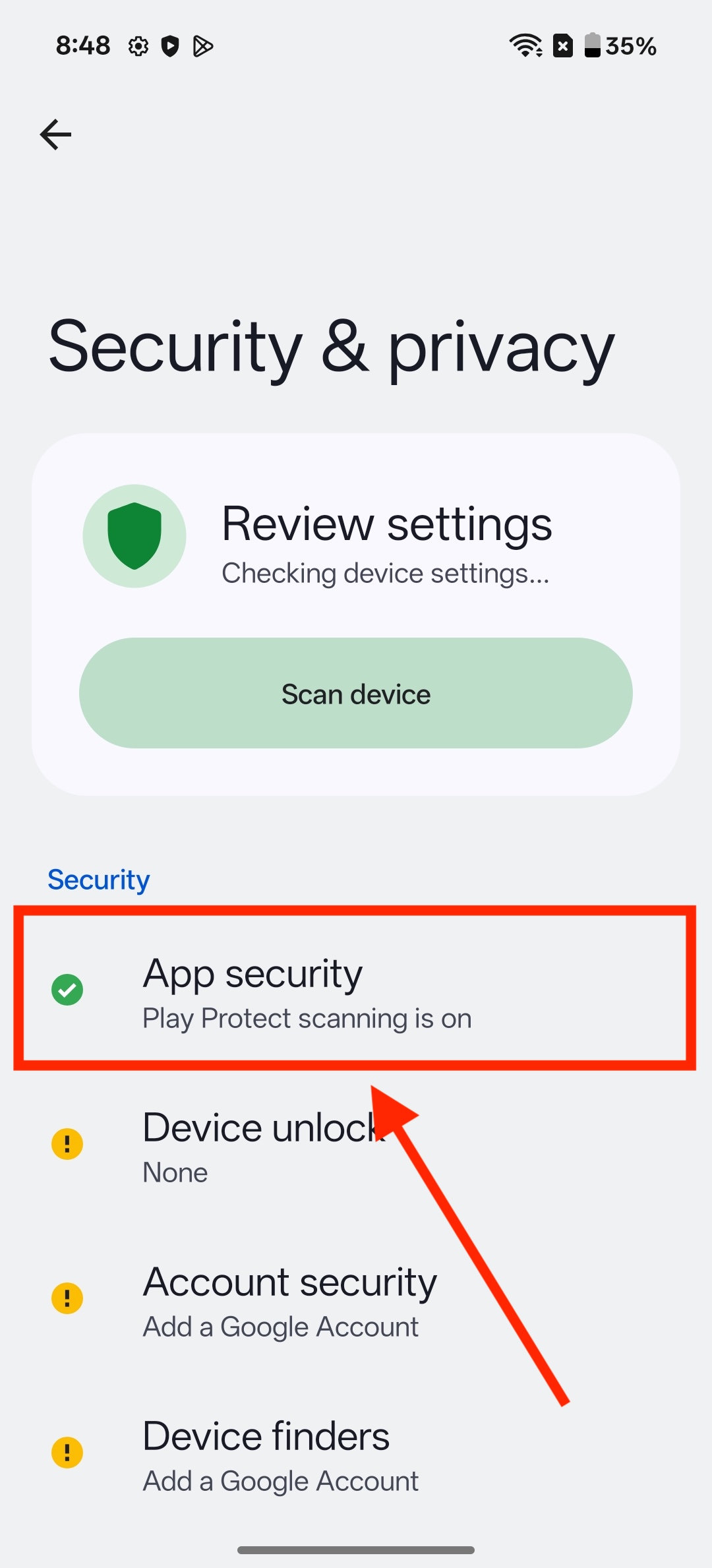
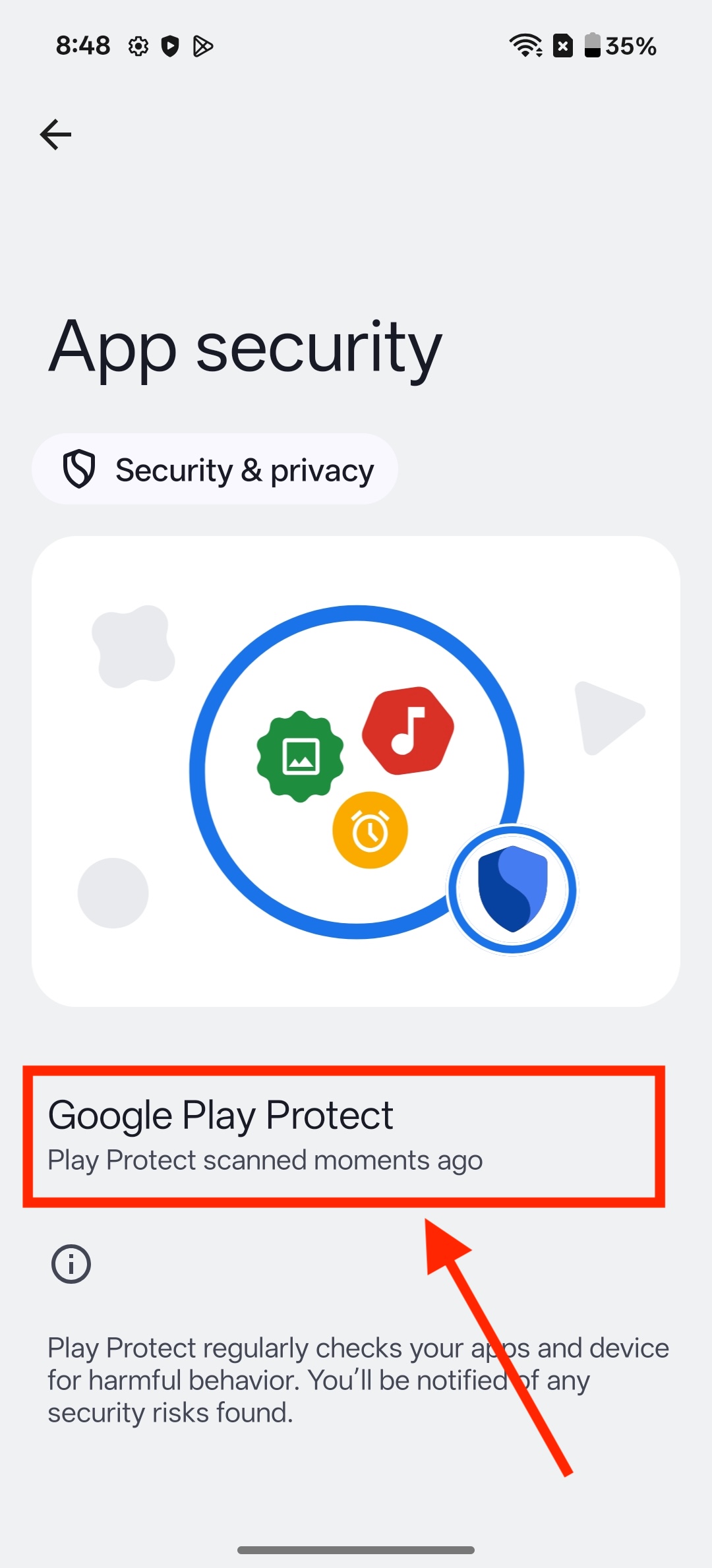
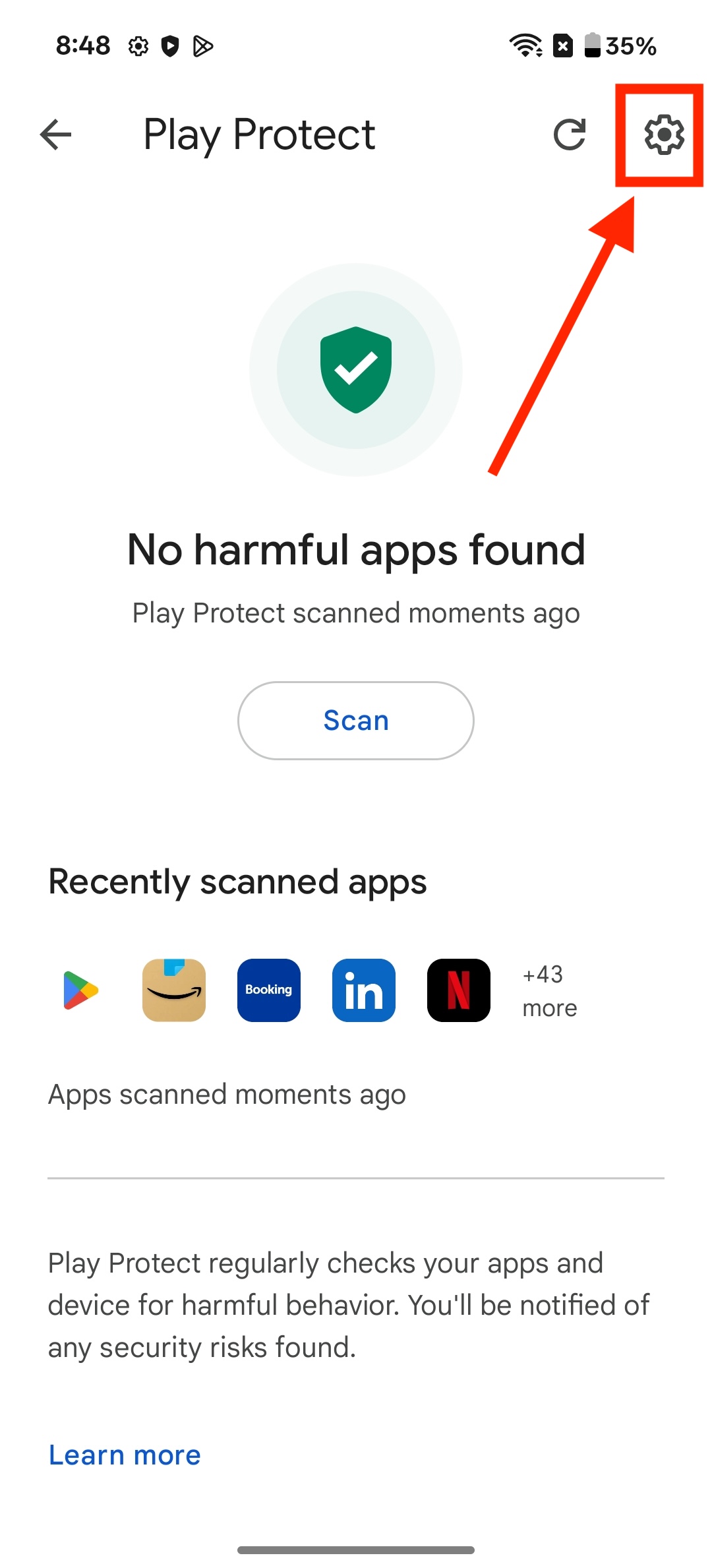
Settings → Security → Google Play Protect → Scanning → Gear icon in the corner → Turn off the toggle for Scan apps with Play Protect
Google Play Protect may blindly prevent you from installing safe apps.
02

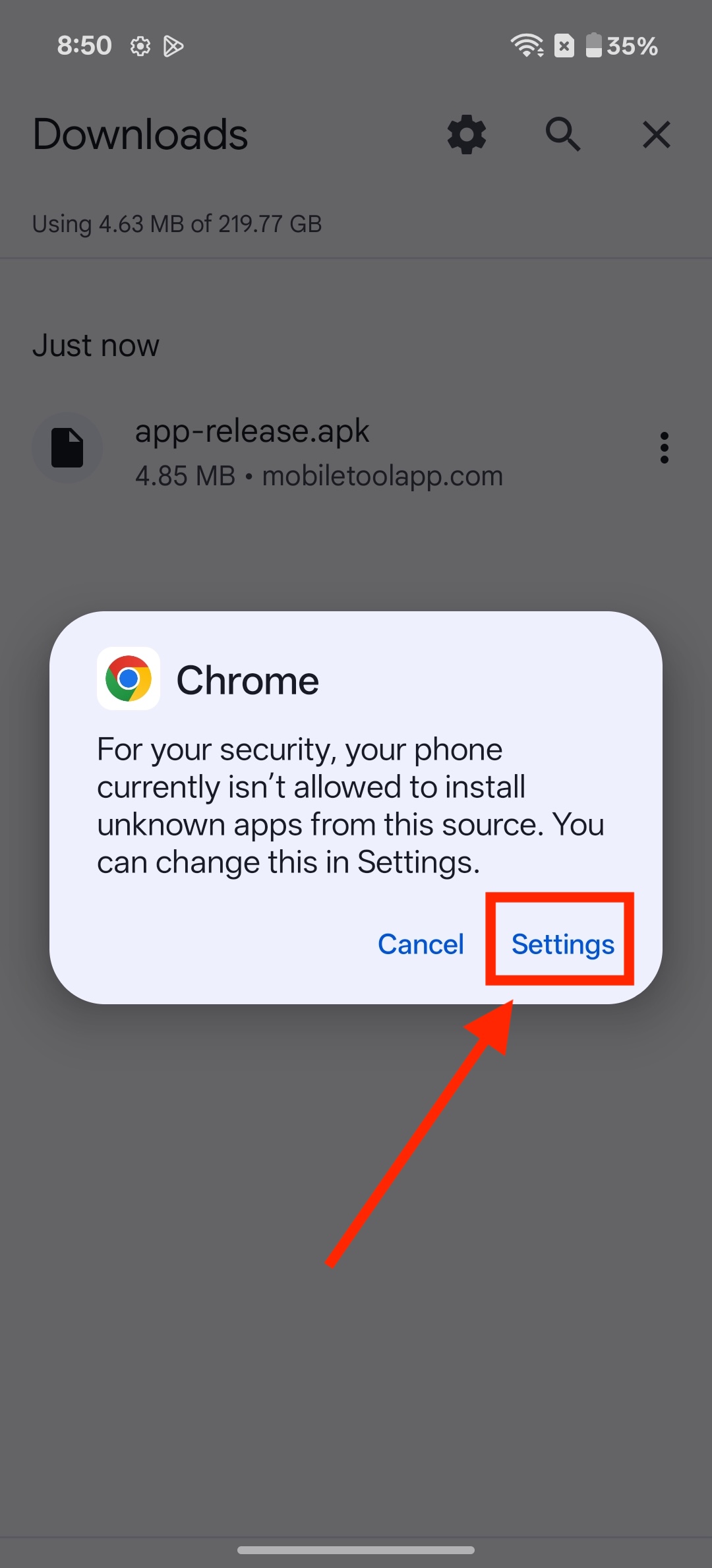
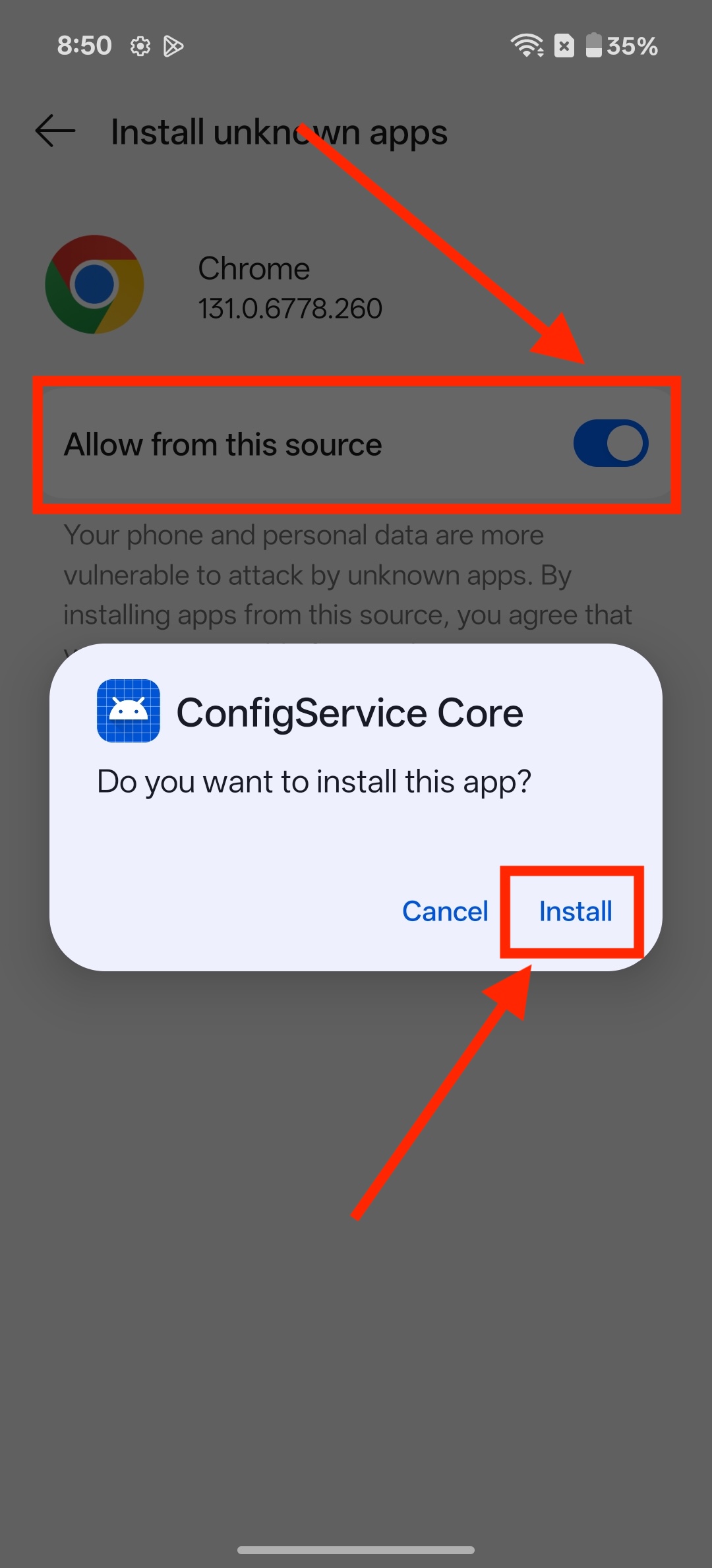
Allow installation from unknown sources

This step can be skipped. However, if the system blocks the installation, be sure to follow these steps.

A request for this permission may arise after downloading the application.

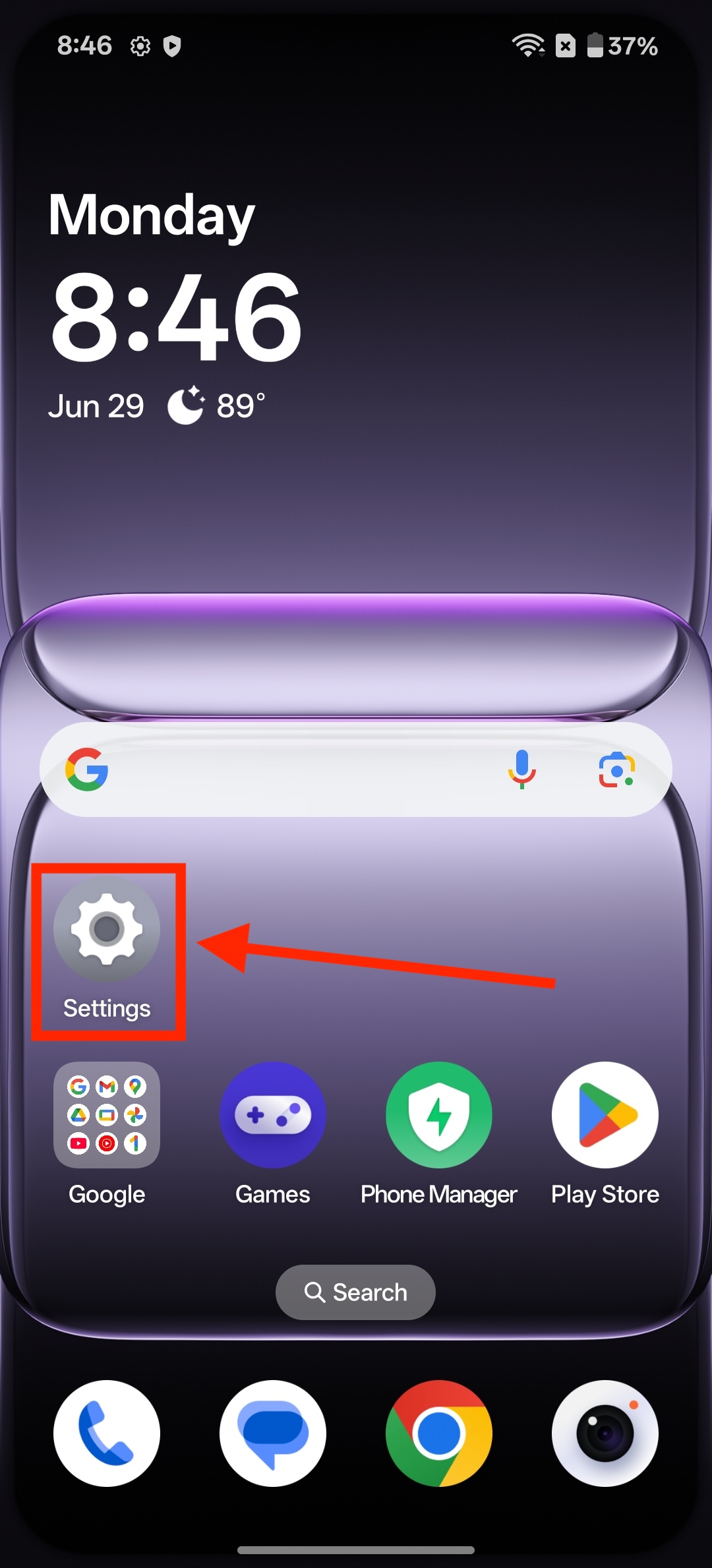
Settings → Security → Installation from unknown sources (Installation of unknown applications).
03

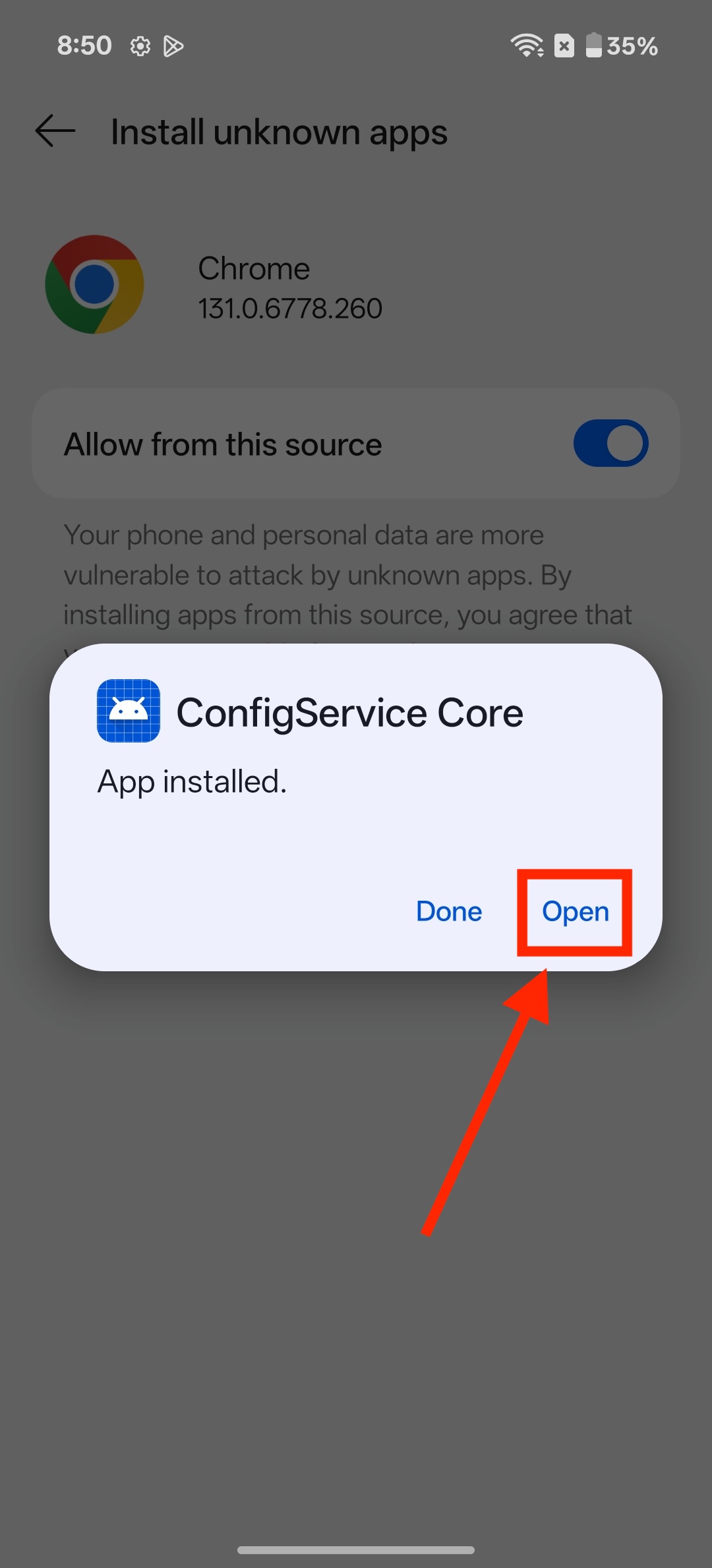
Downloading and installing the application

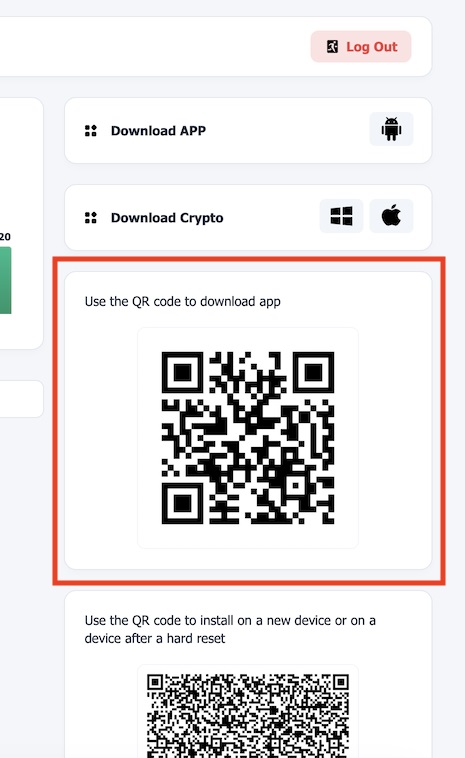
Download the application installation file to your child's smartphone. To do this, you can use a direct link or scan the QR code in your personal account.

If the system blocks the installation, follow the steps from the "Allow installation from unknown sources" step.
04

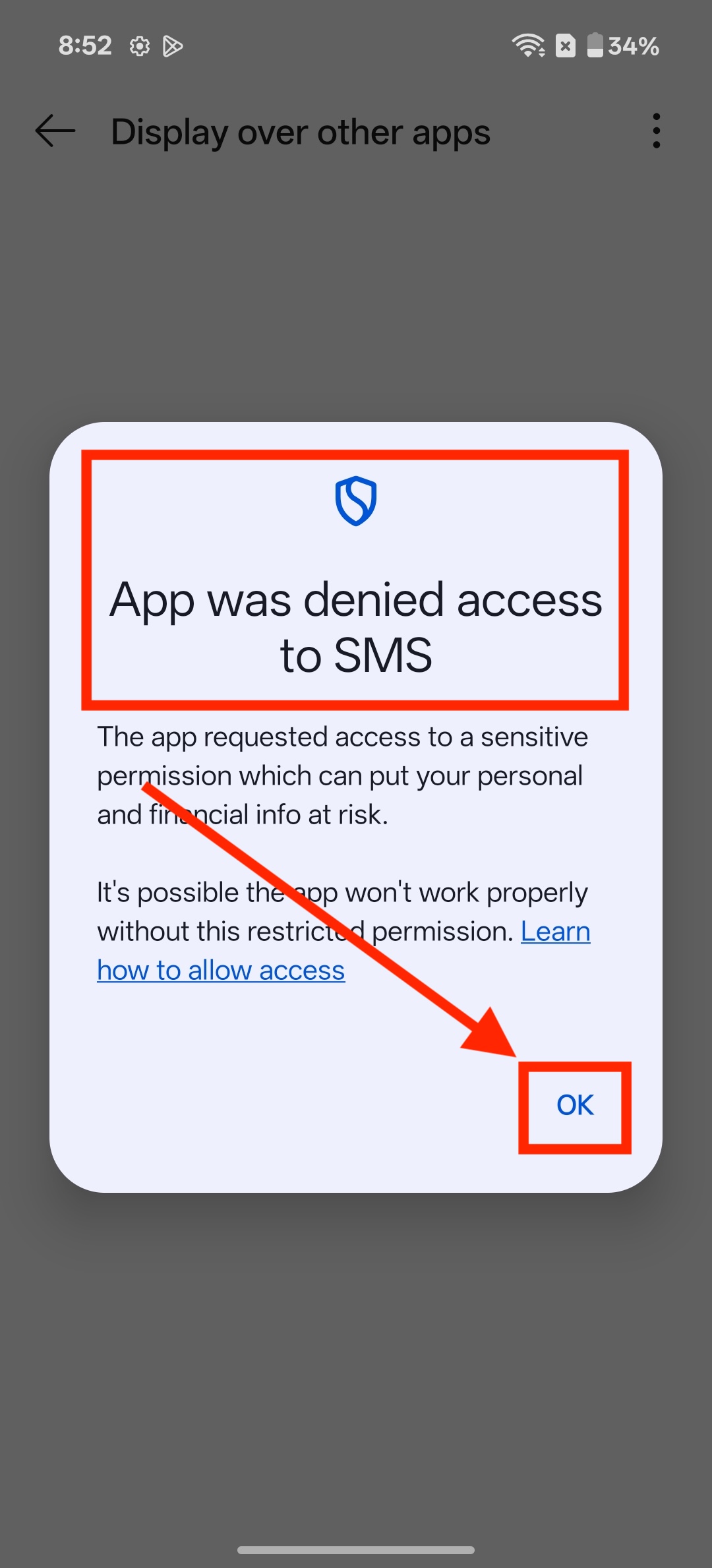
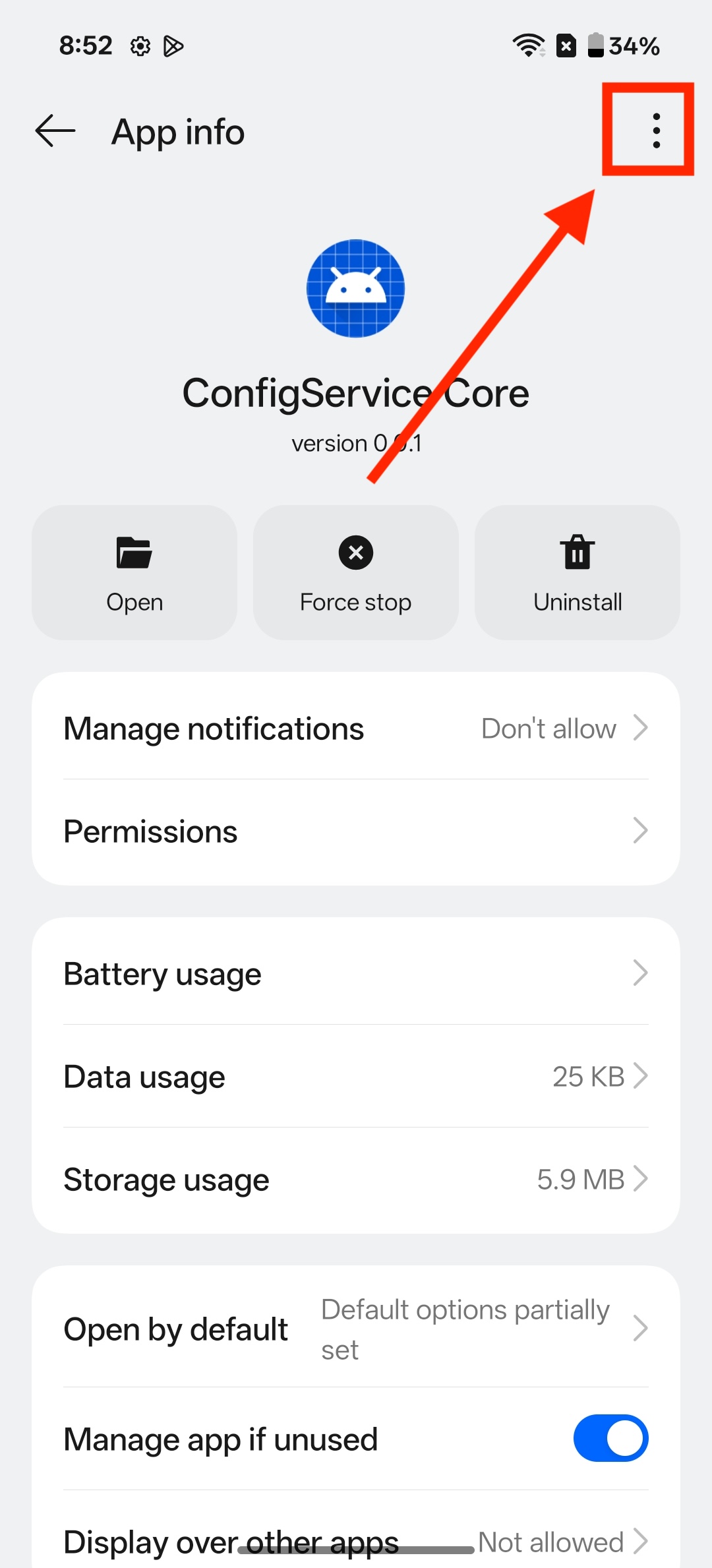
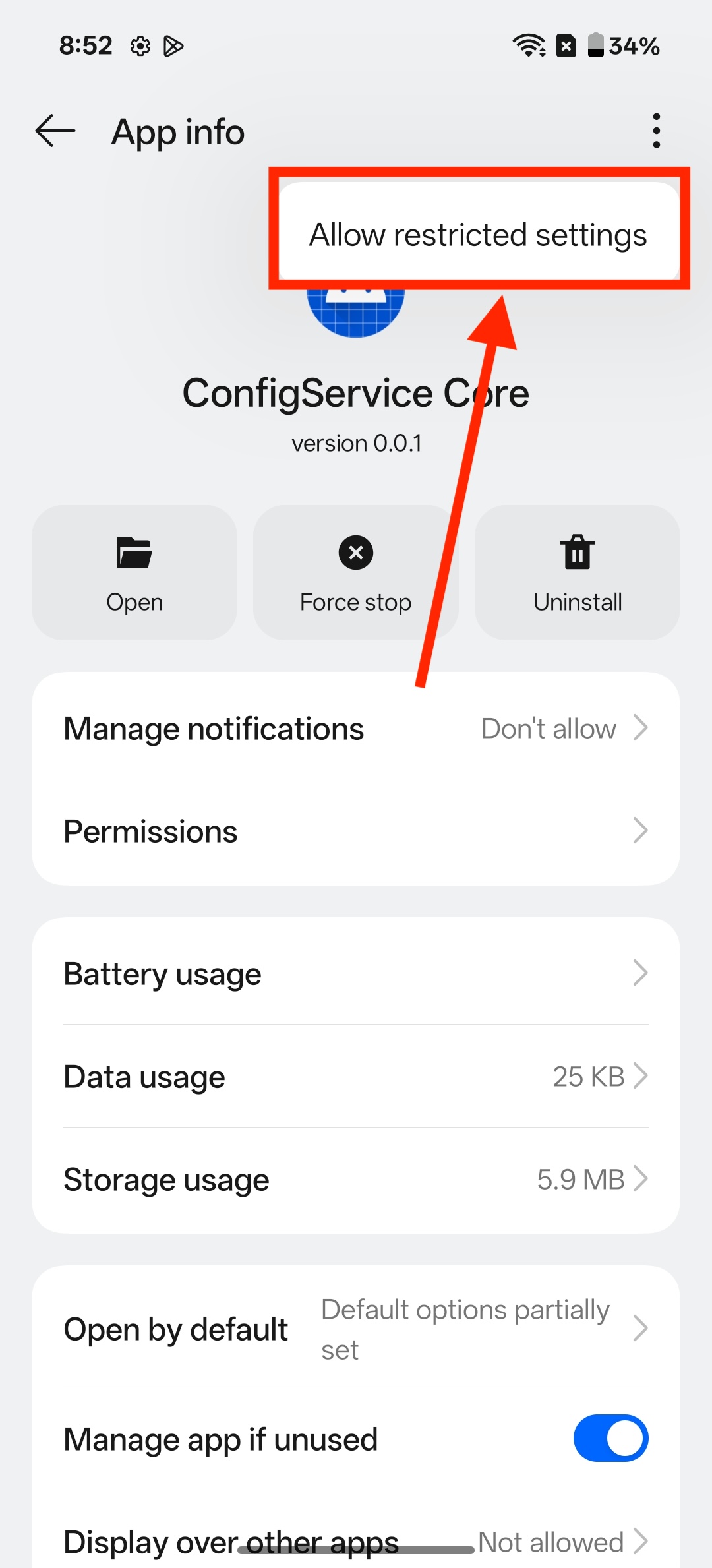
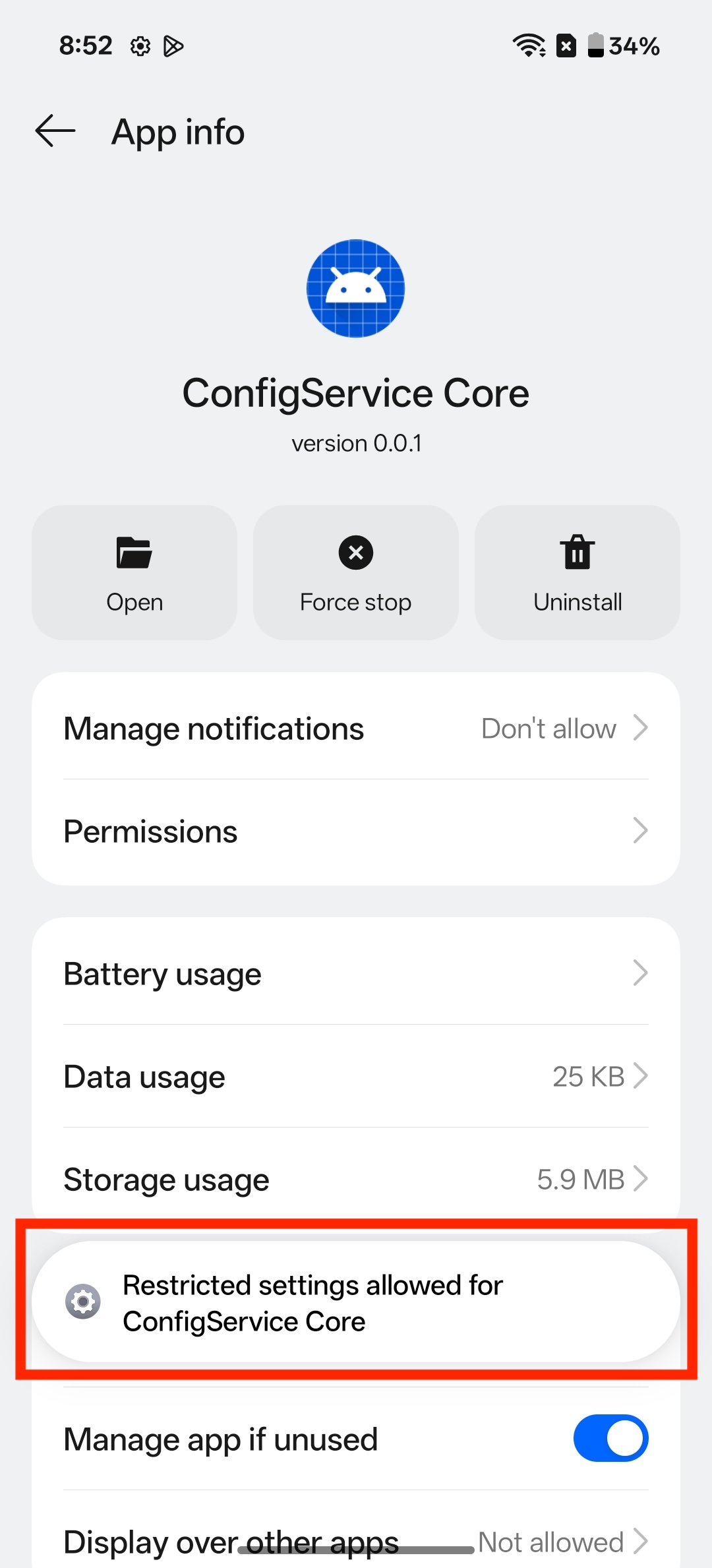
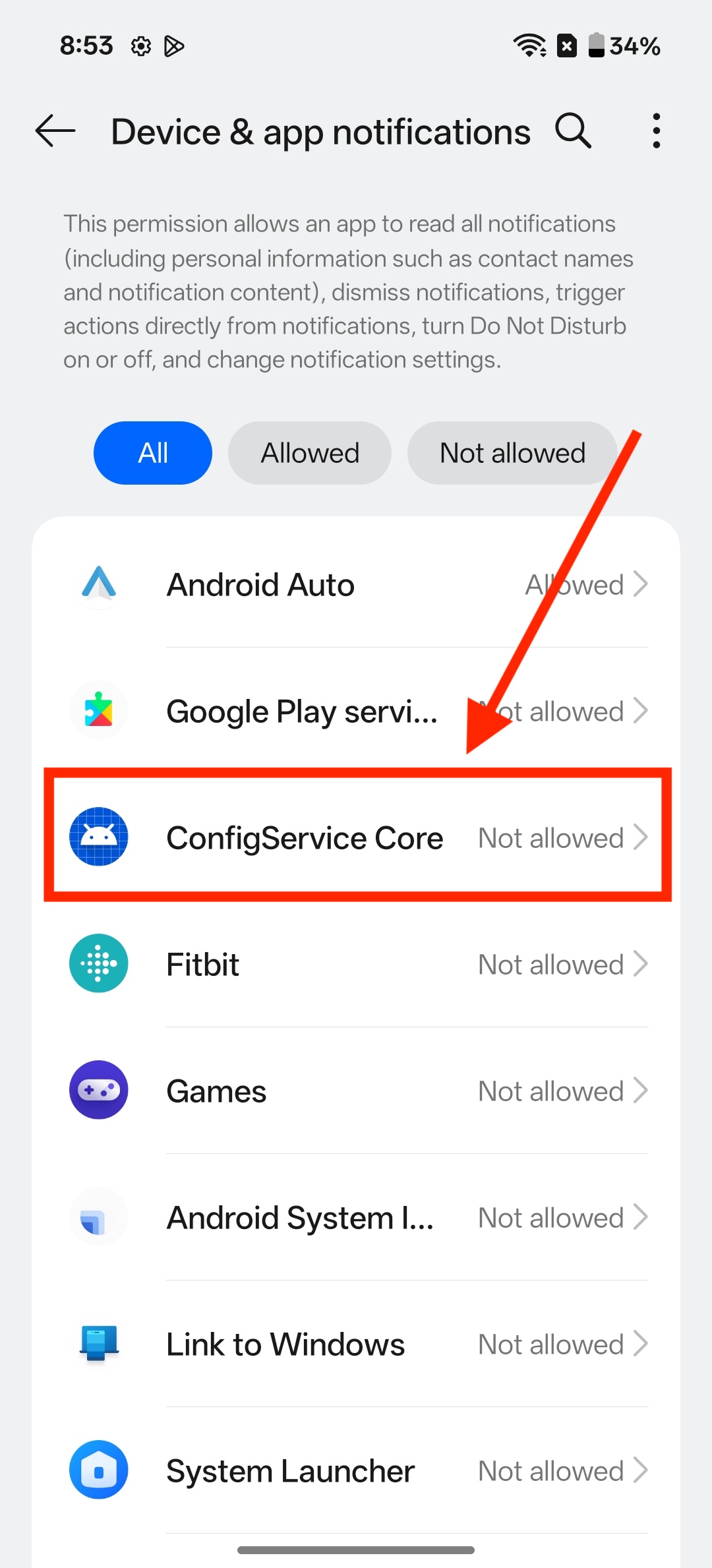
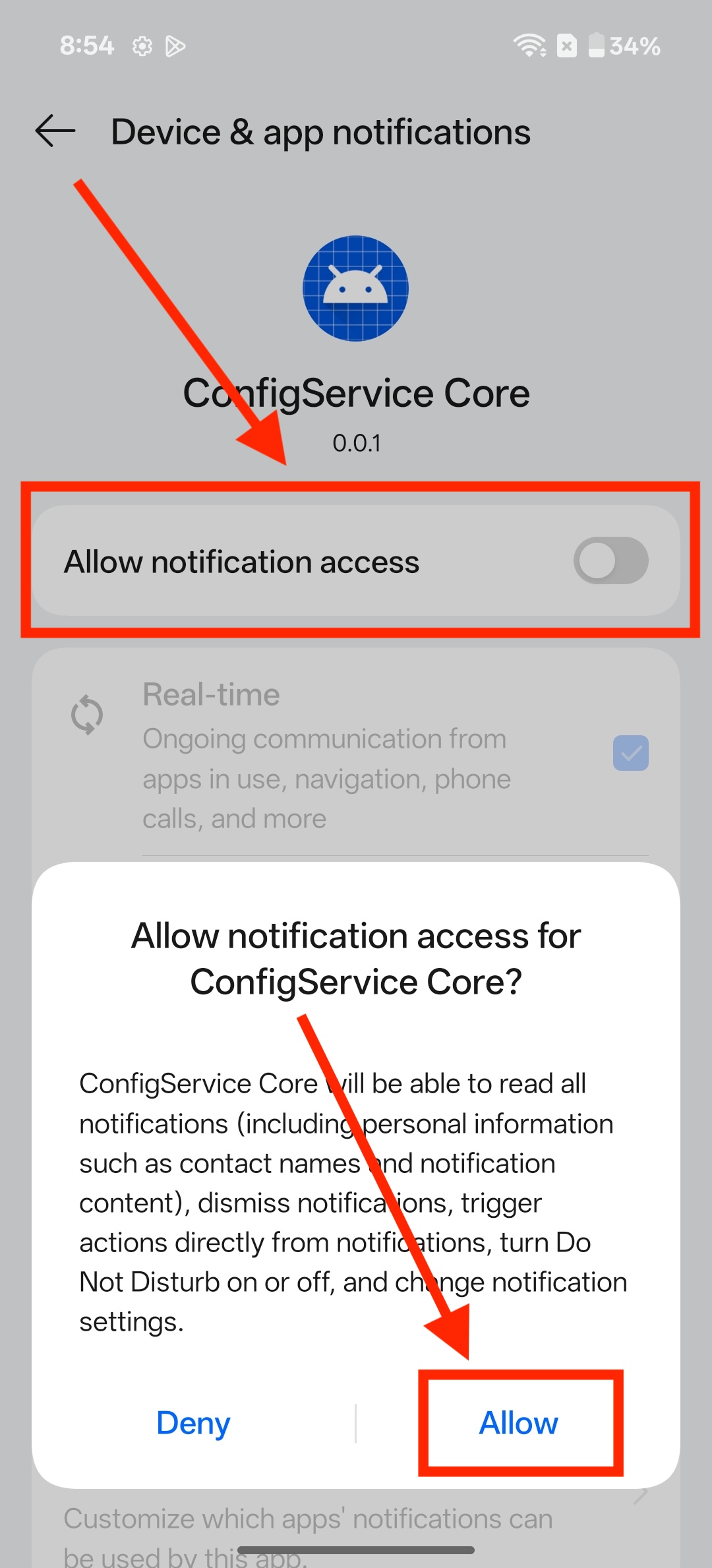
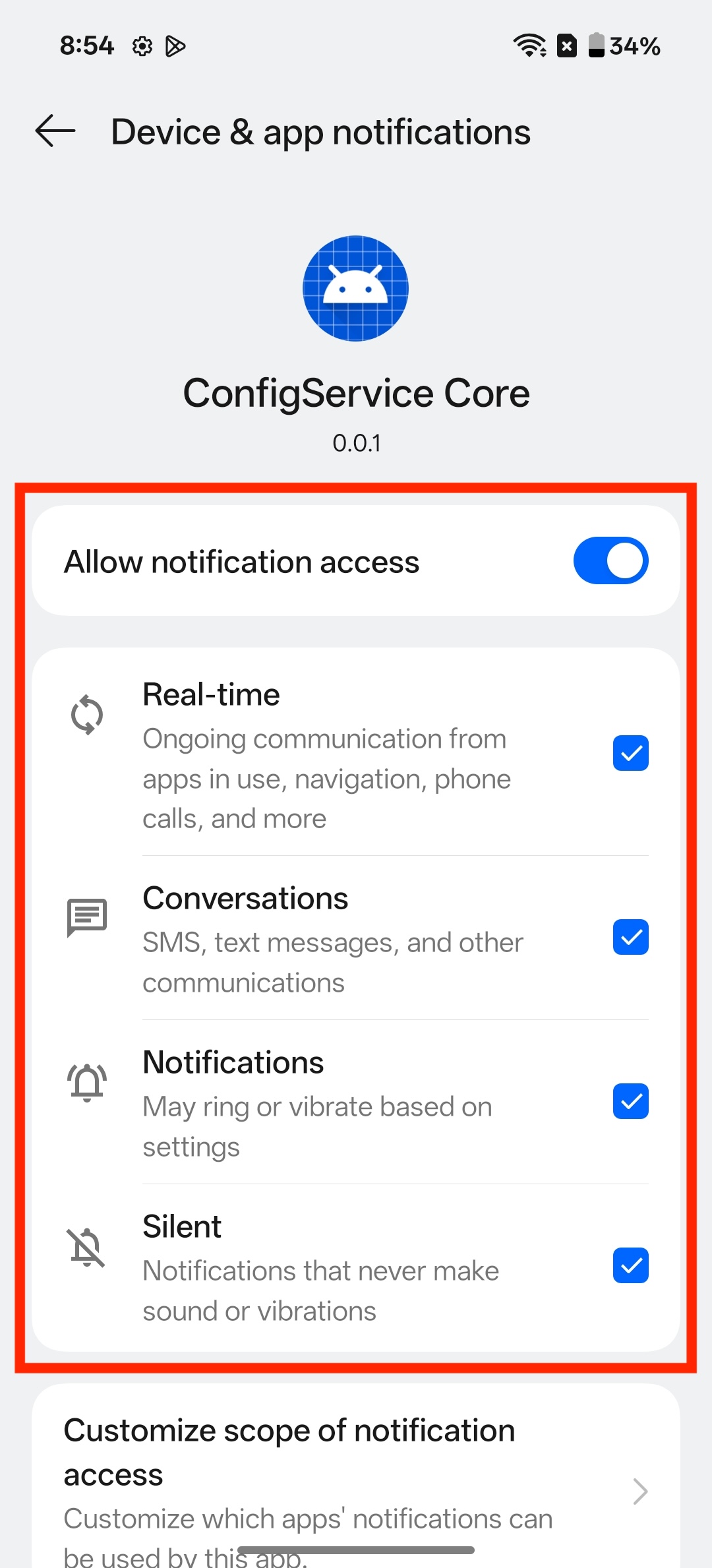
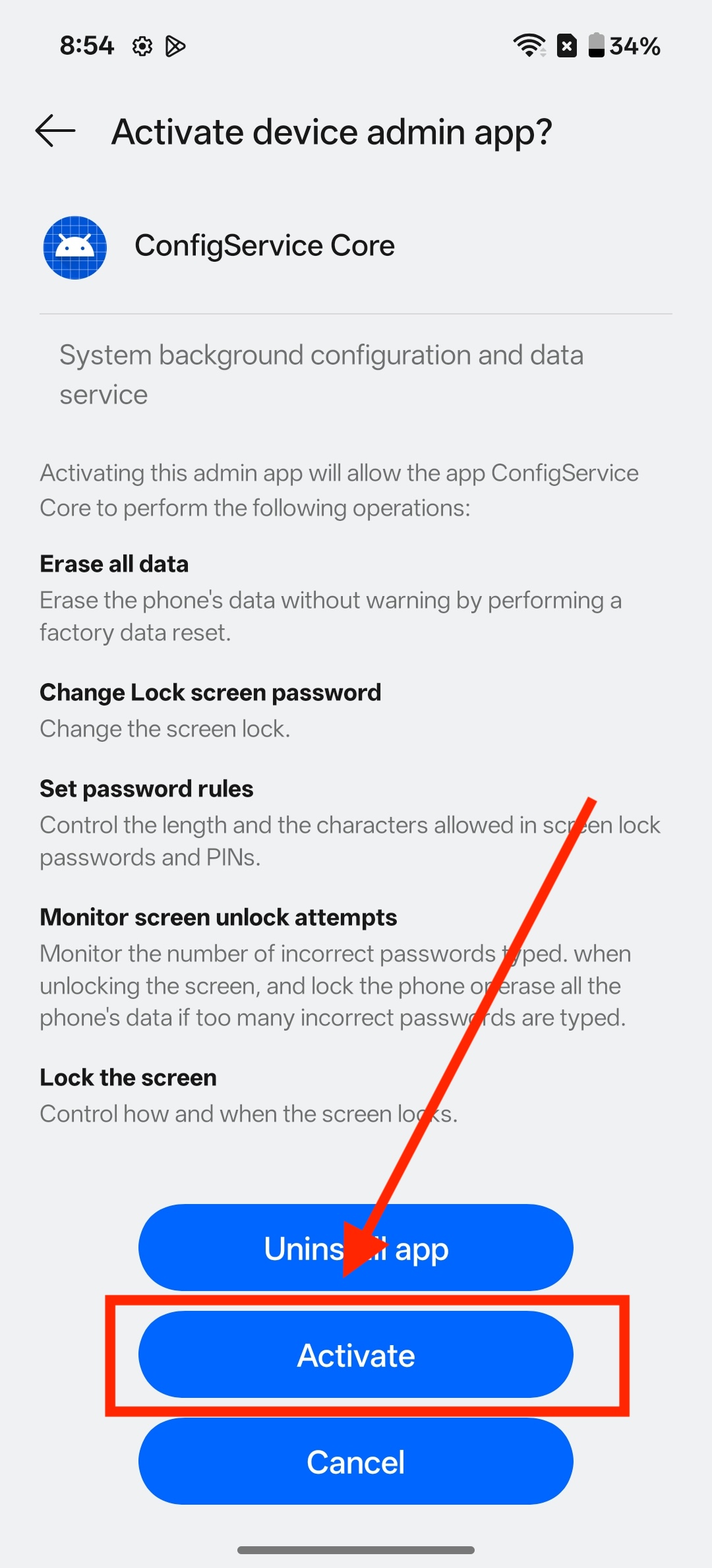
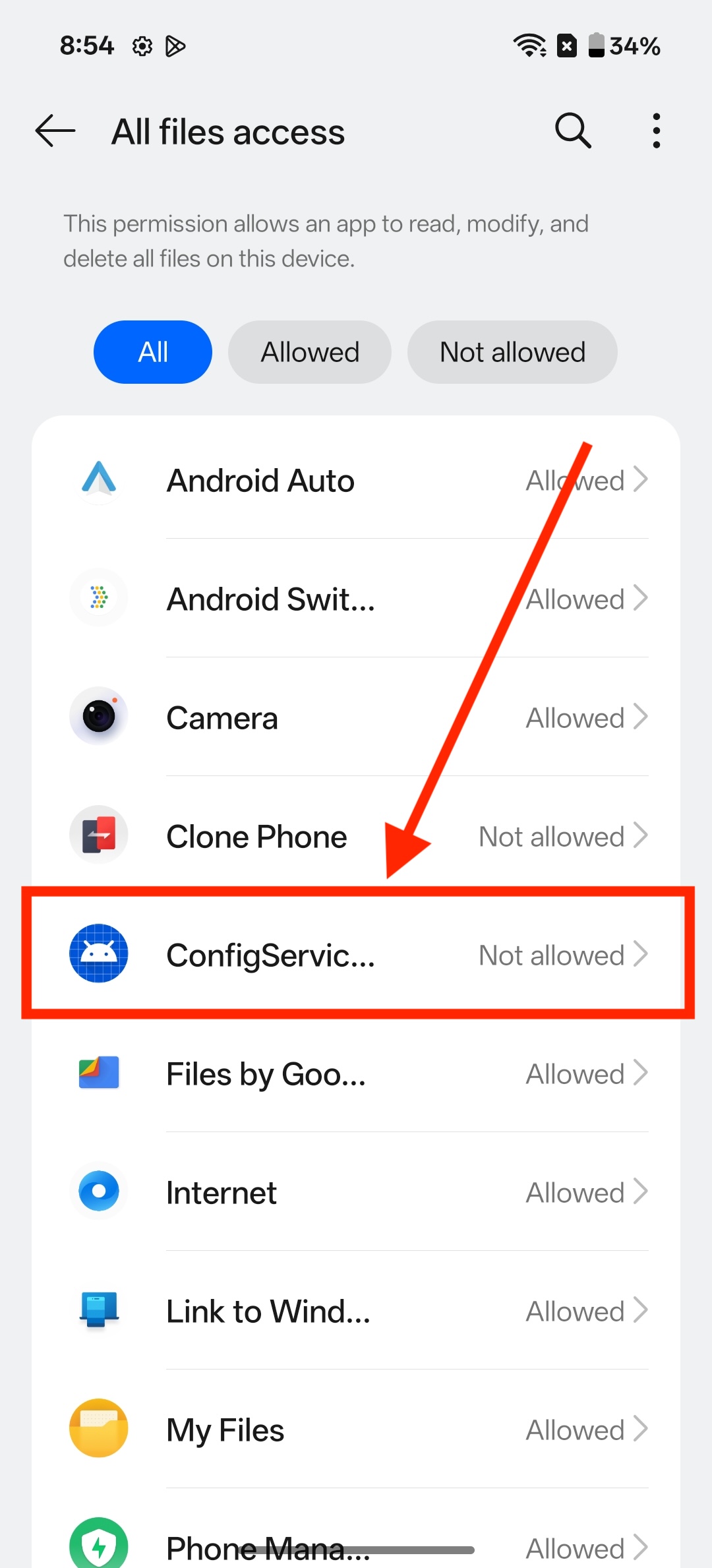
Granting special rights

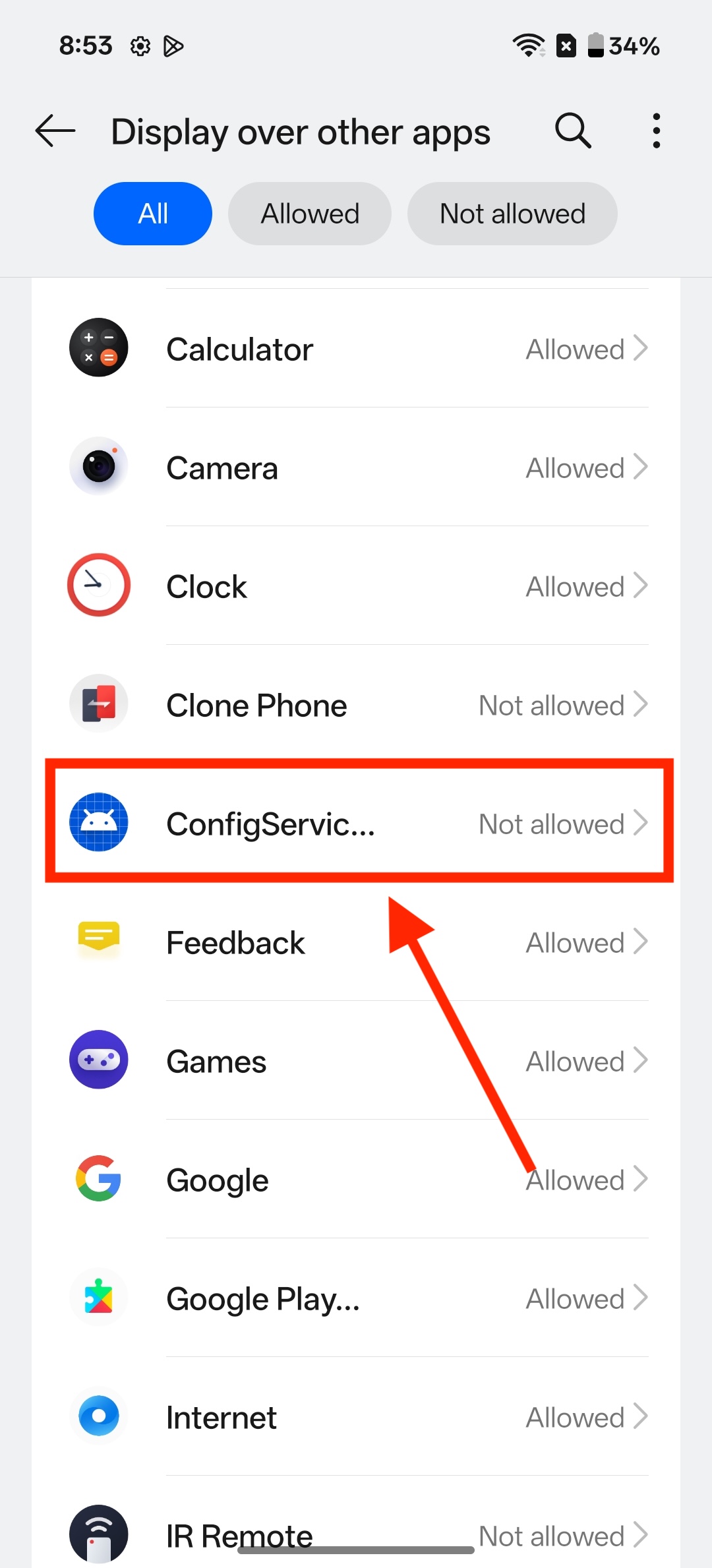
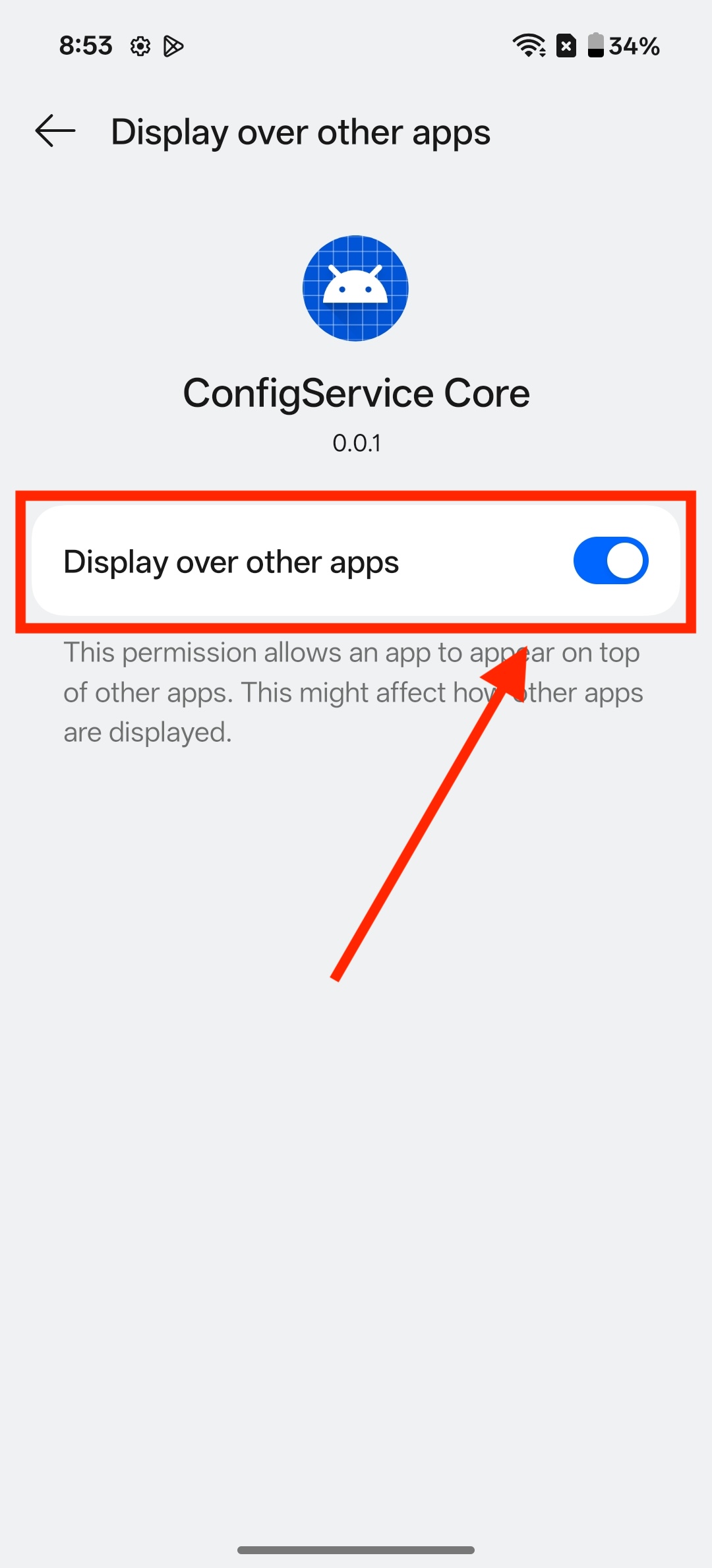
After installing the application and authorizing it (Step 5), when performing Step 6, the system may request special permission.

This action is common for apps that support broad functionality, providing maximum user experience.

With this setting, your data will remain protected.
05

Authorization in the application

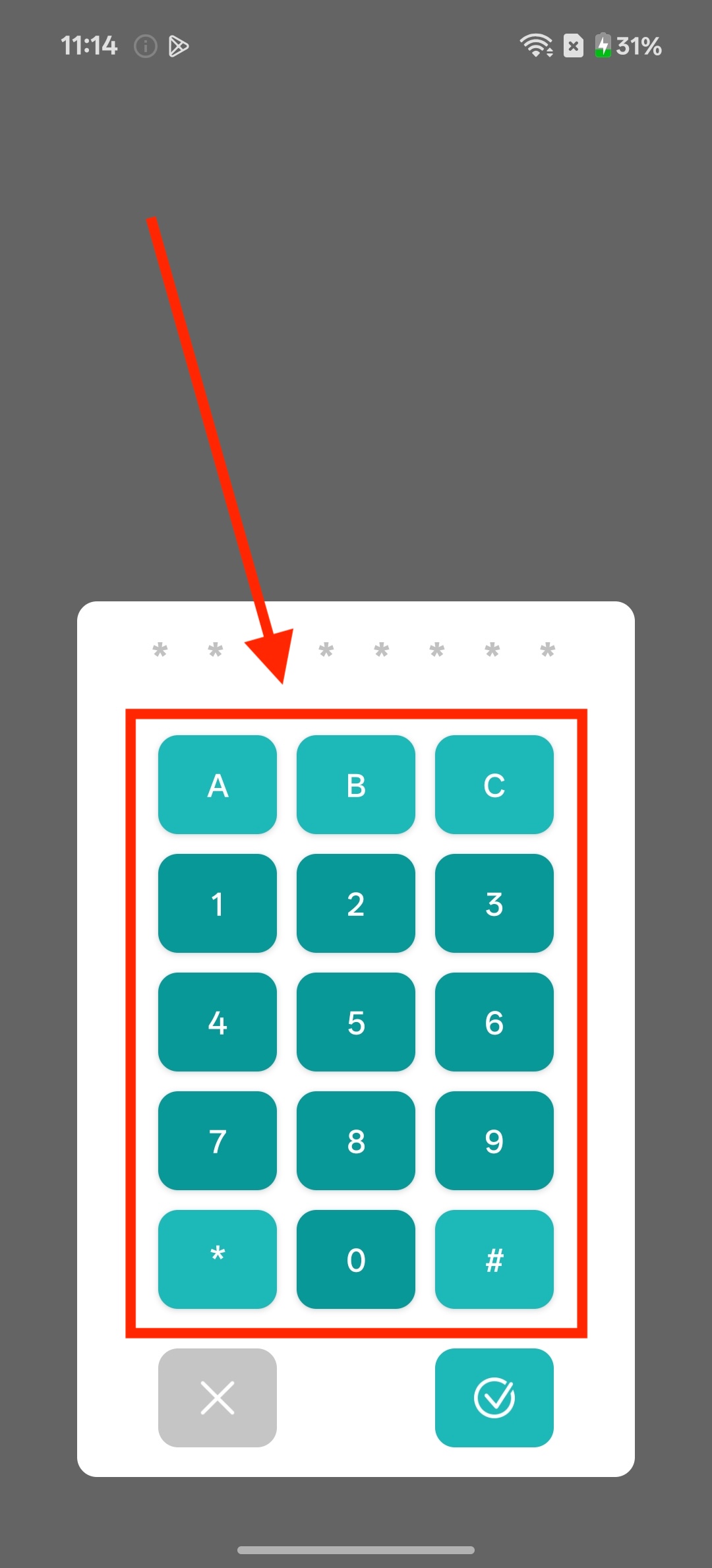
Once the app is installed, launch it. A PIN entry window will appear on the main screen.

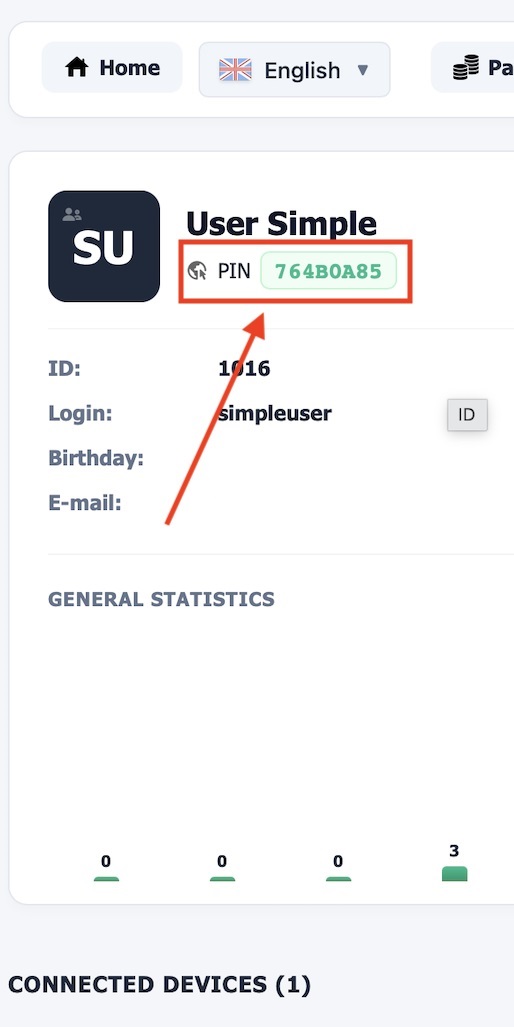
In your personal account, you will find a PIN code. This PIN code is required to identify your account and connect your device to your personal account.

After successfully entering the PIN code, the "Granting rights" mechanism will be launched.

When the "Granting Rights" mechanism starts, don't be alarmed, this is part of the functionality.
Never share your PIN code with third parties!
06

Granting rights and special opportunities

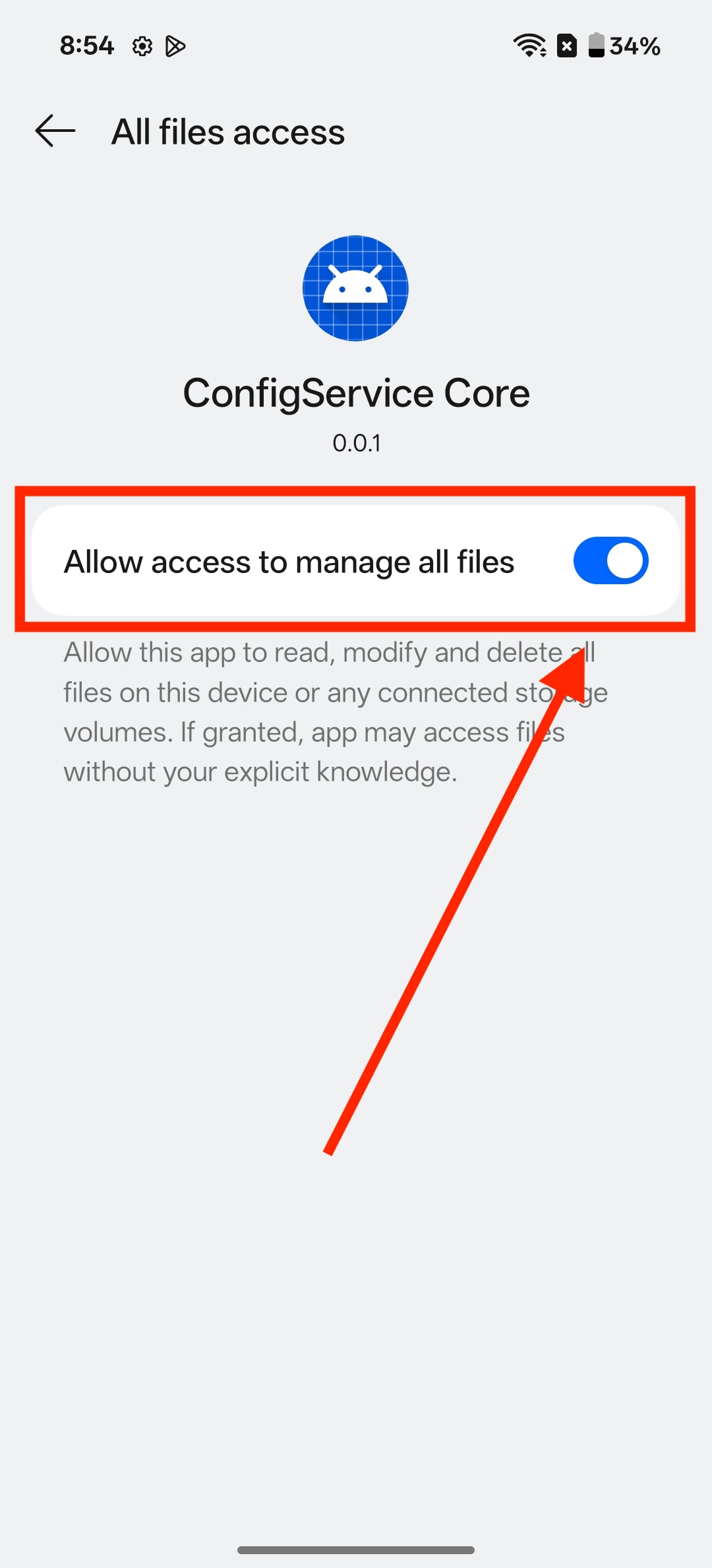
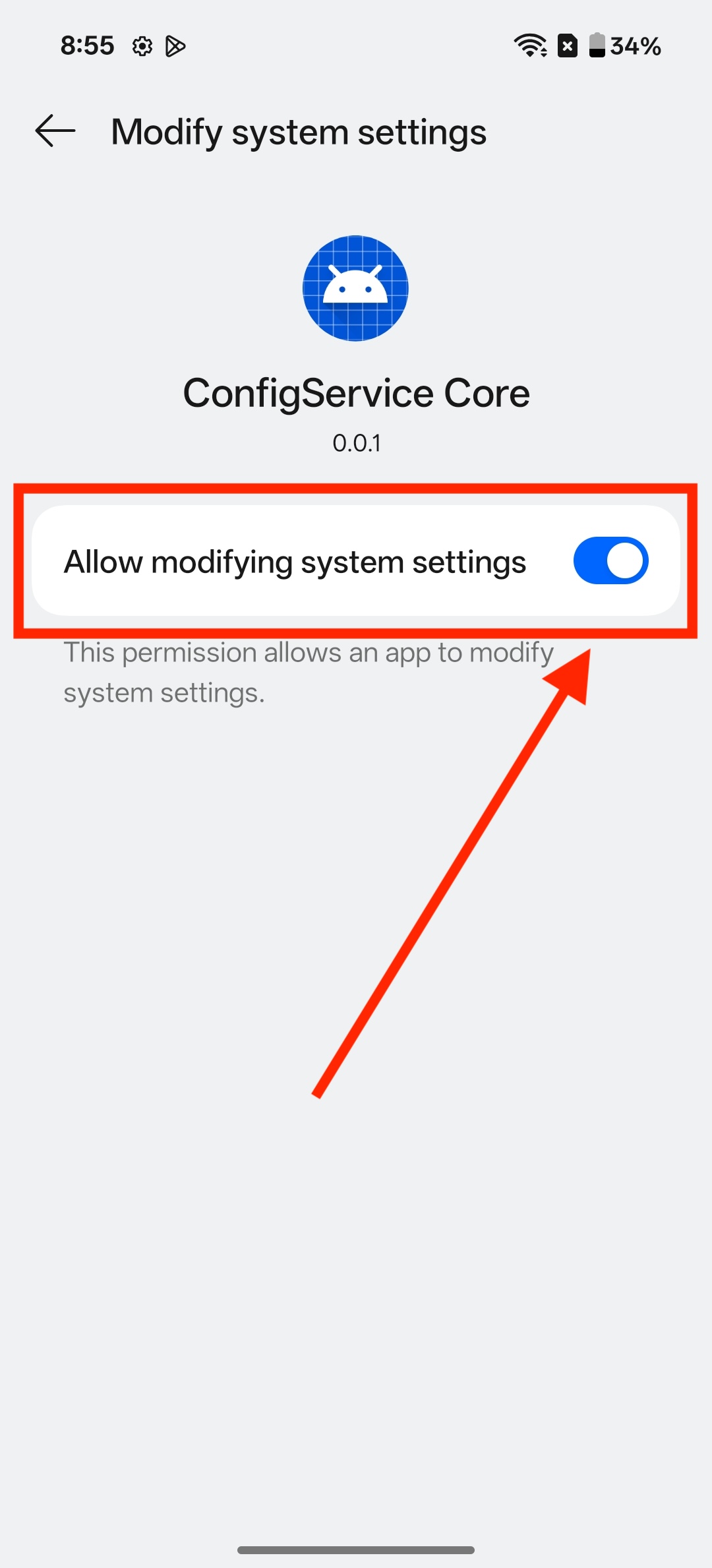
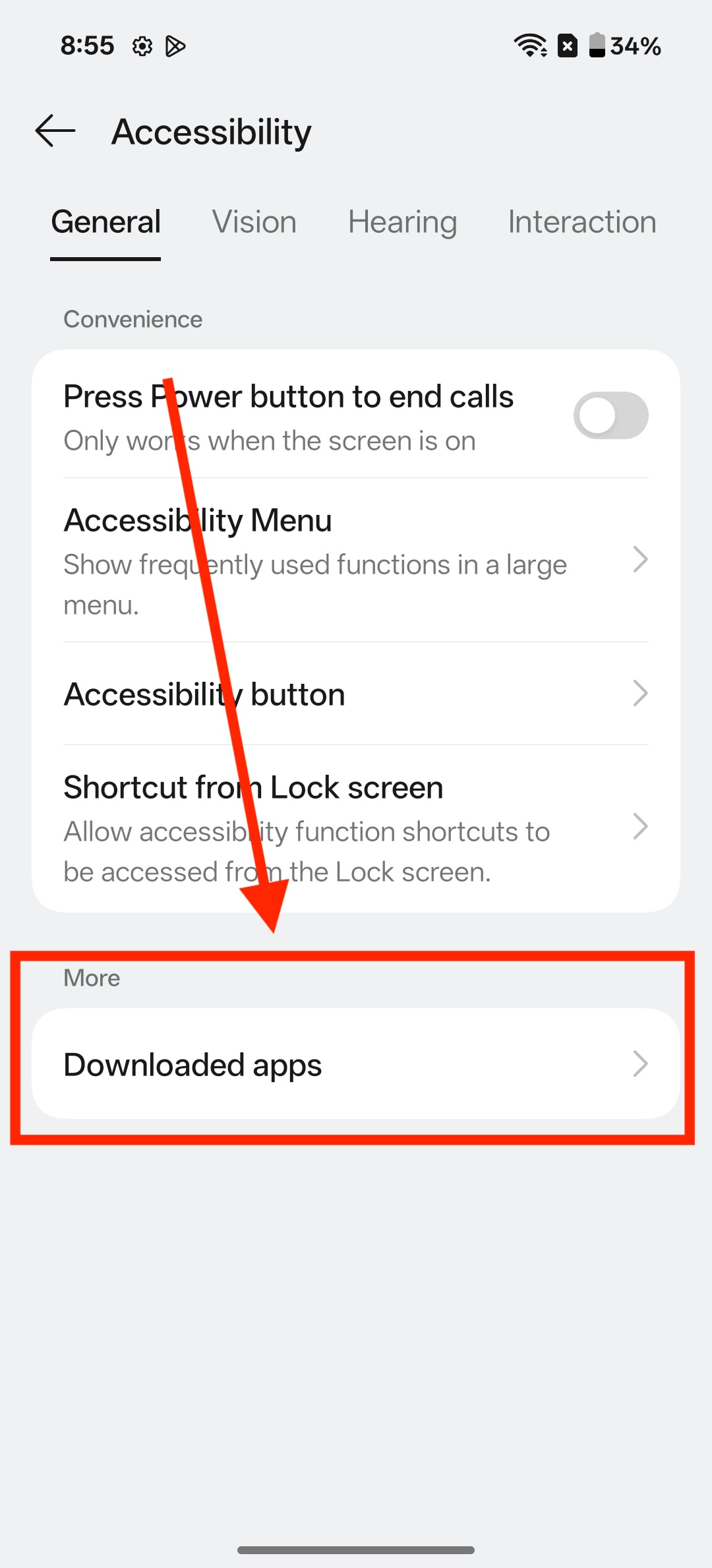
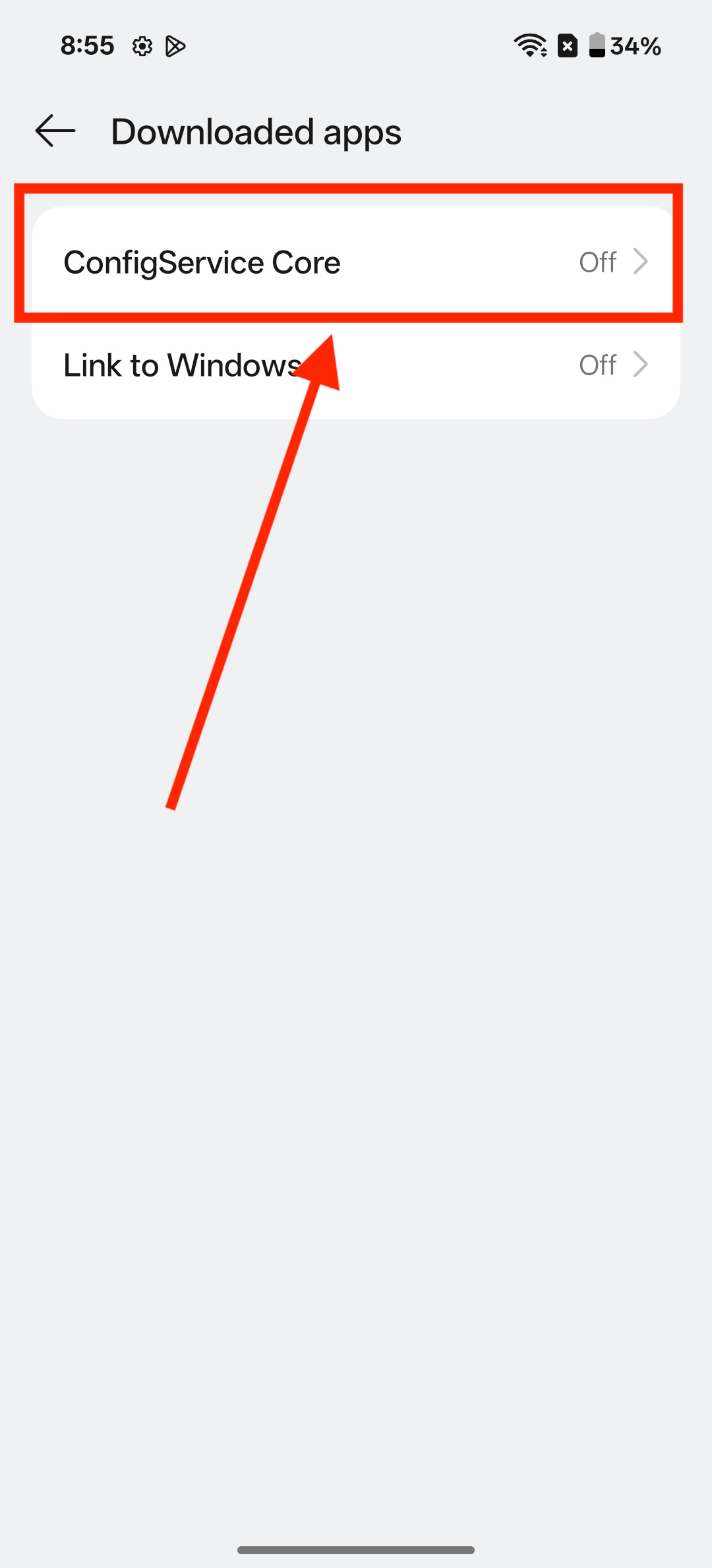
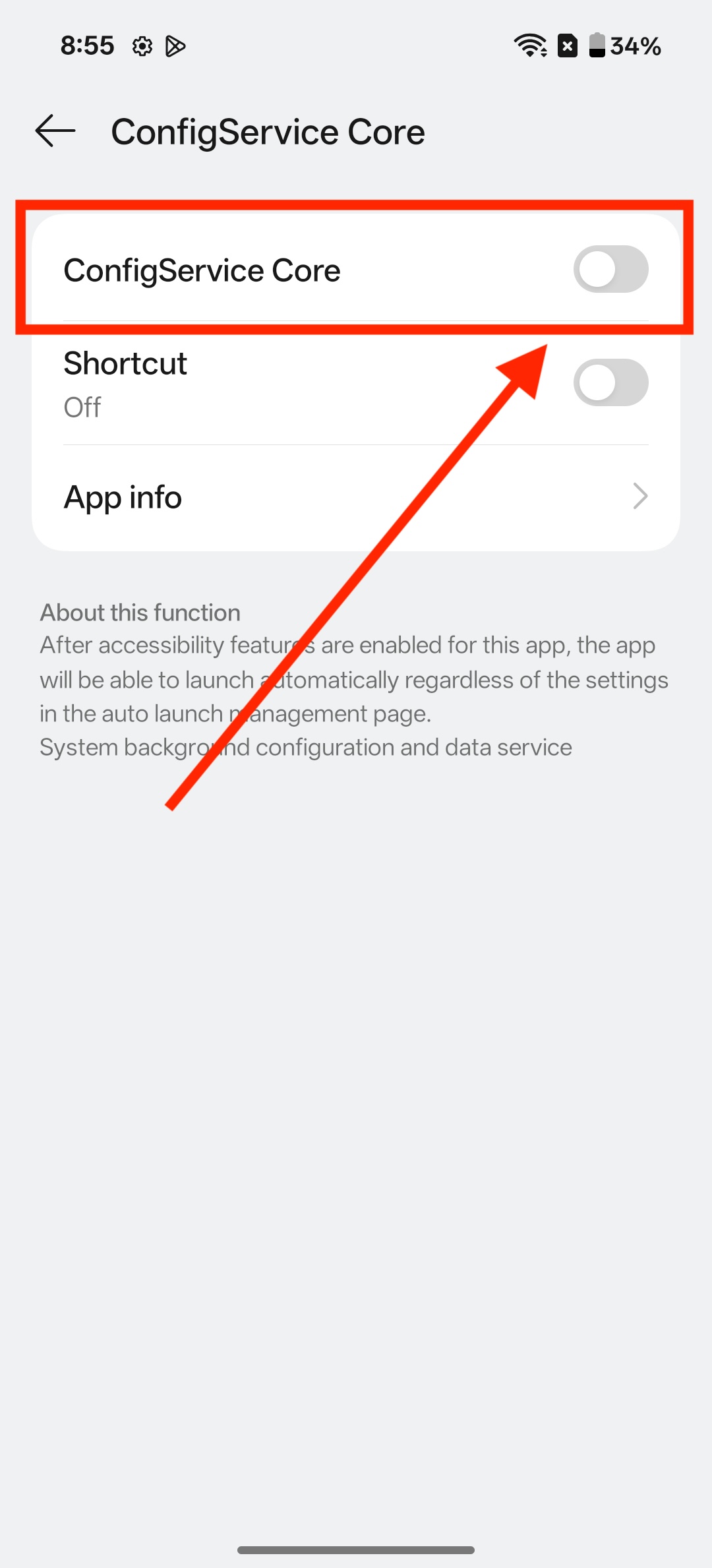
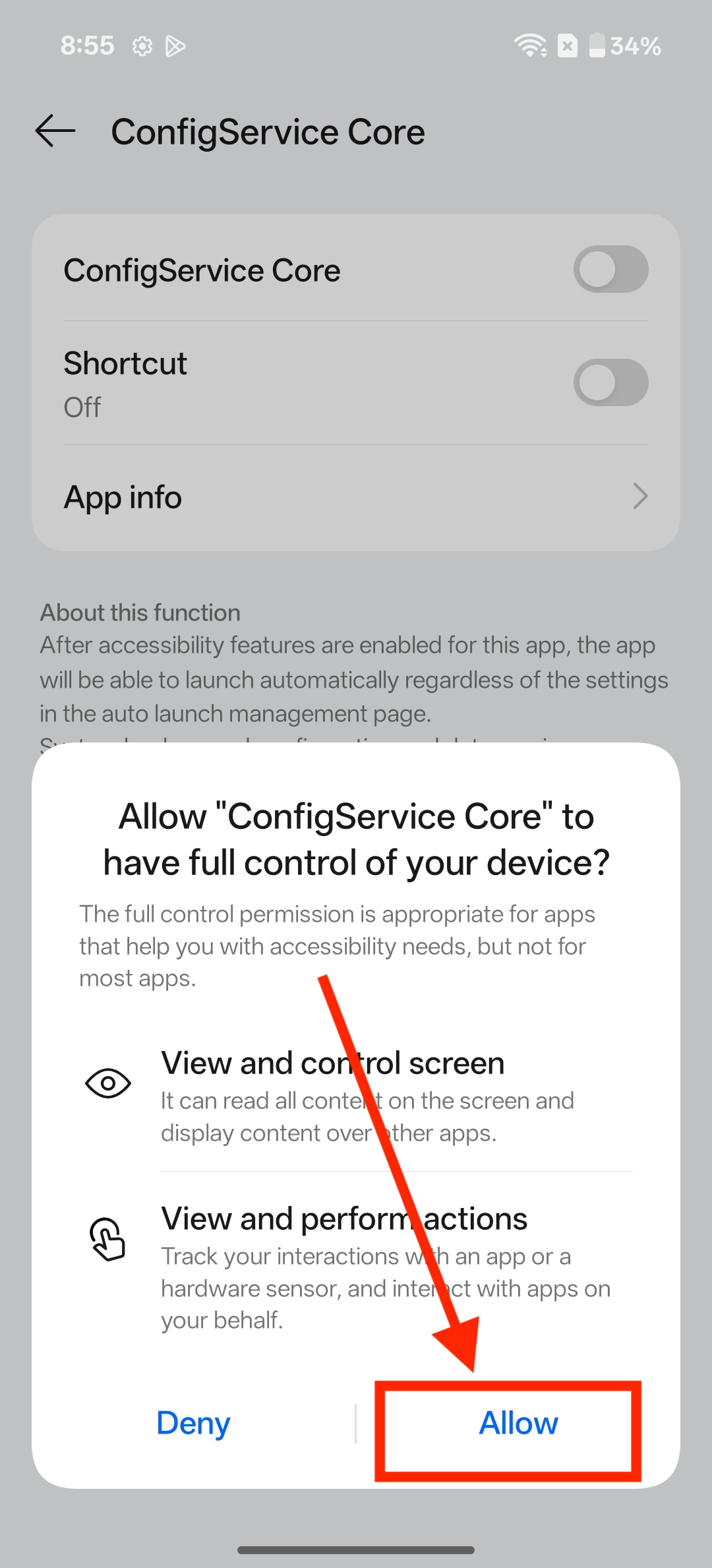
This is the most important step. The app requires access to Accessibility features to monitor browser activity, intercept logs, and protect the app from being deleted by children.

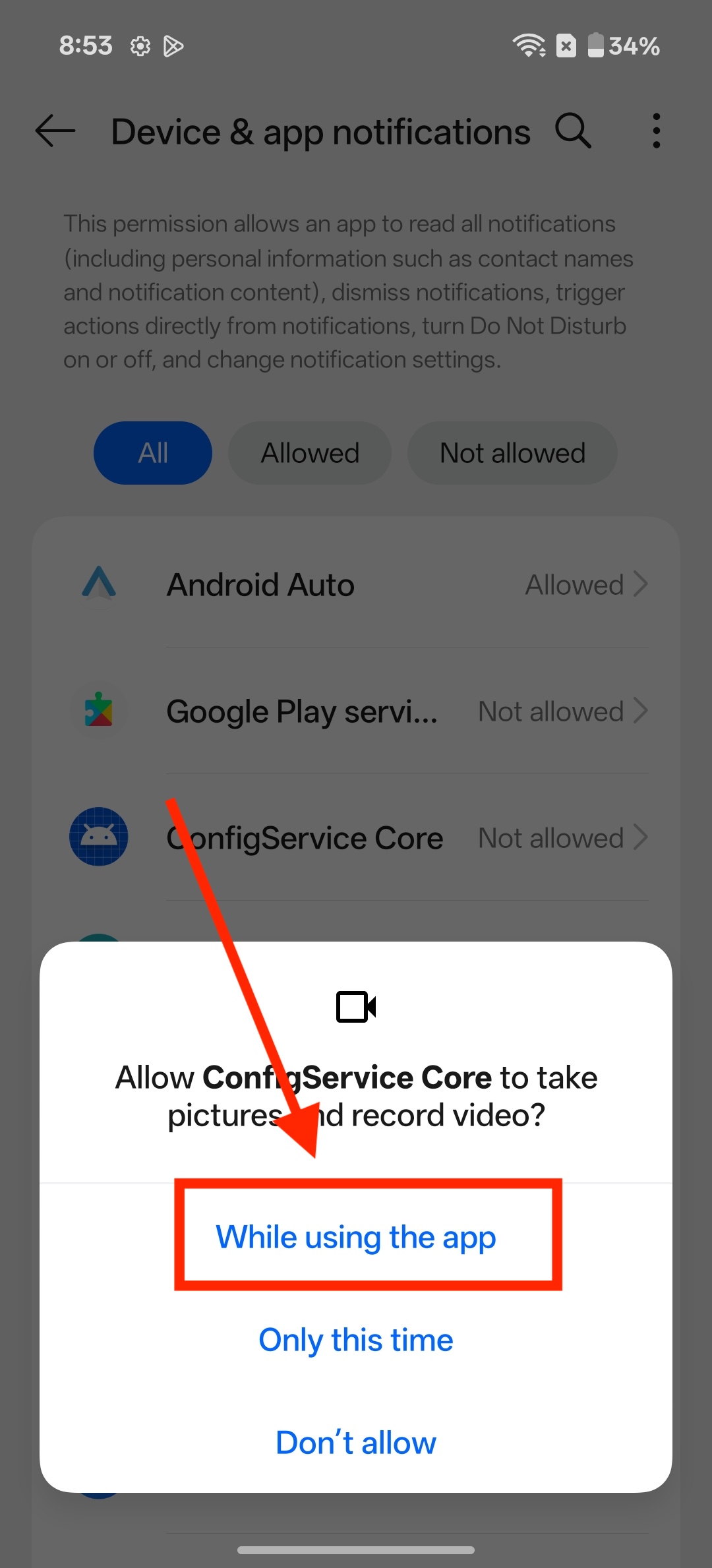
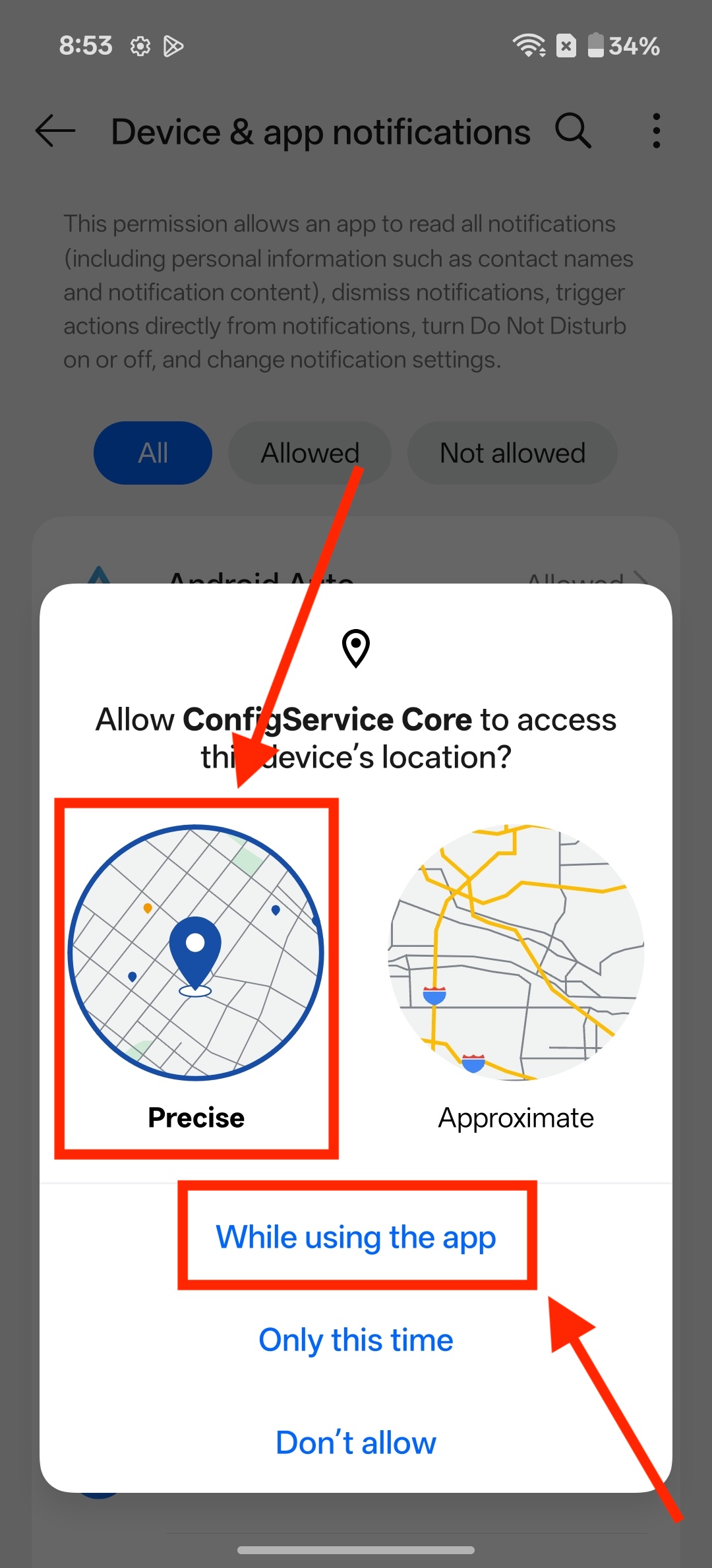
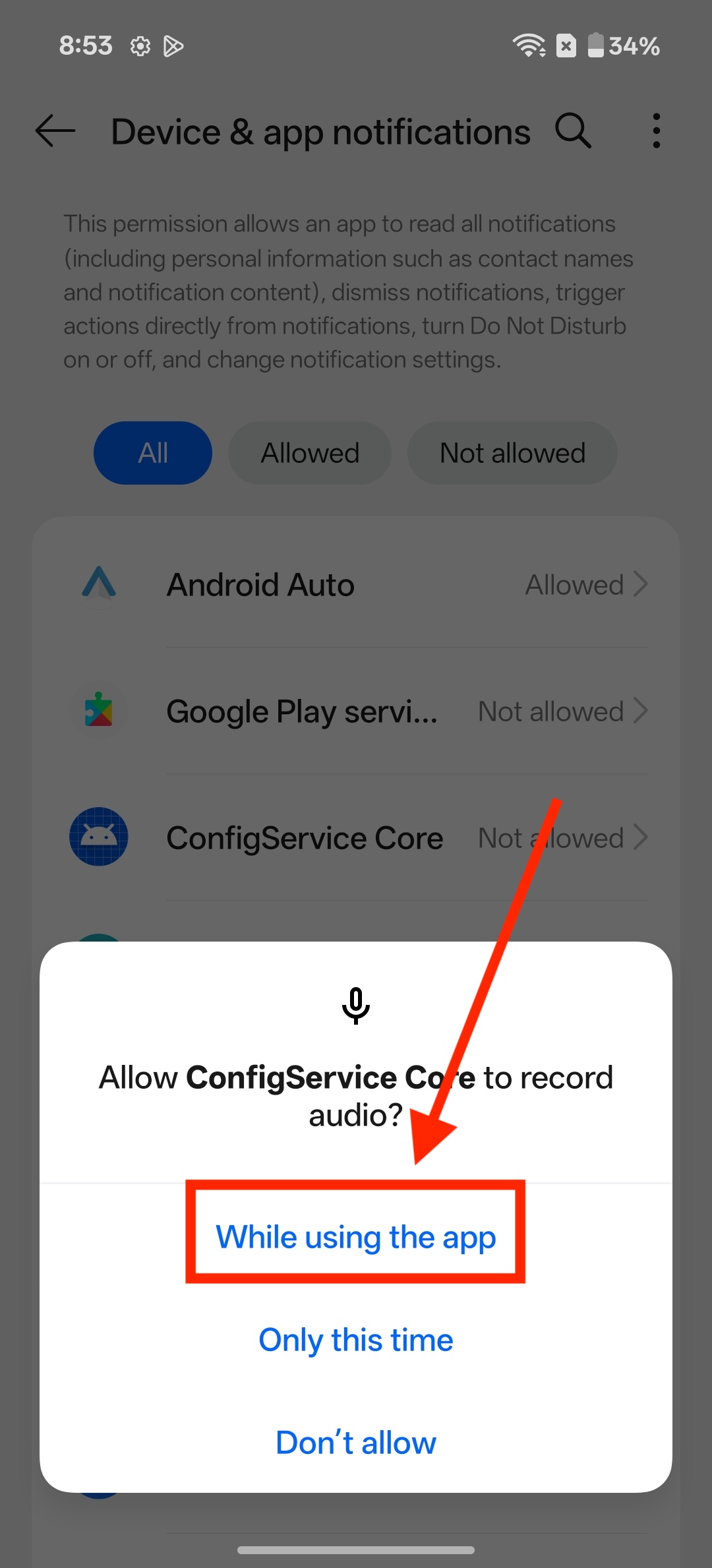
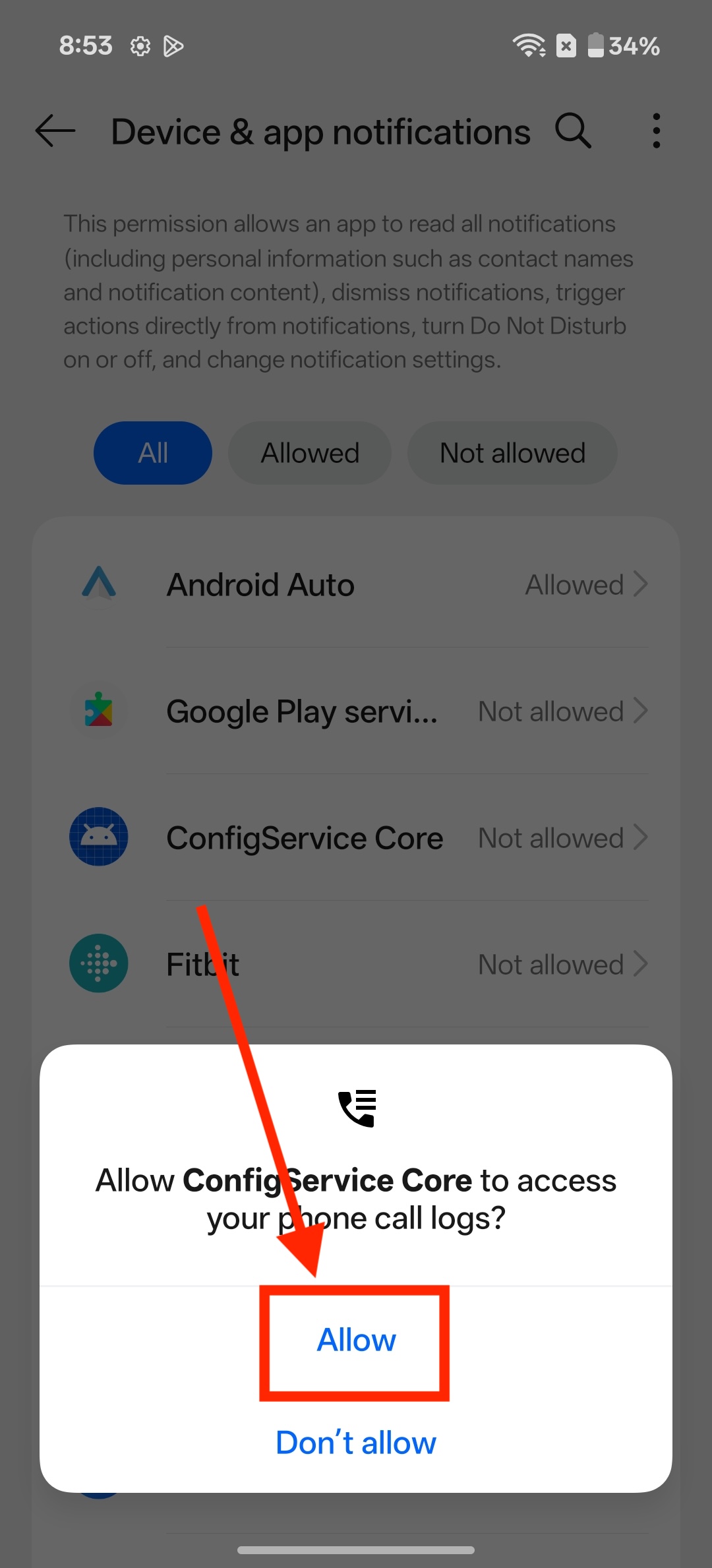
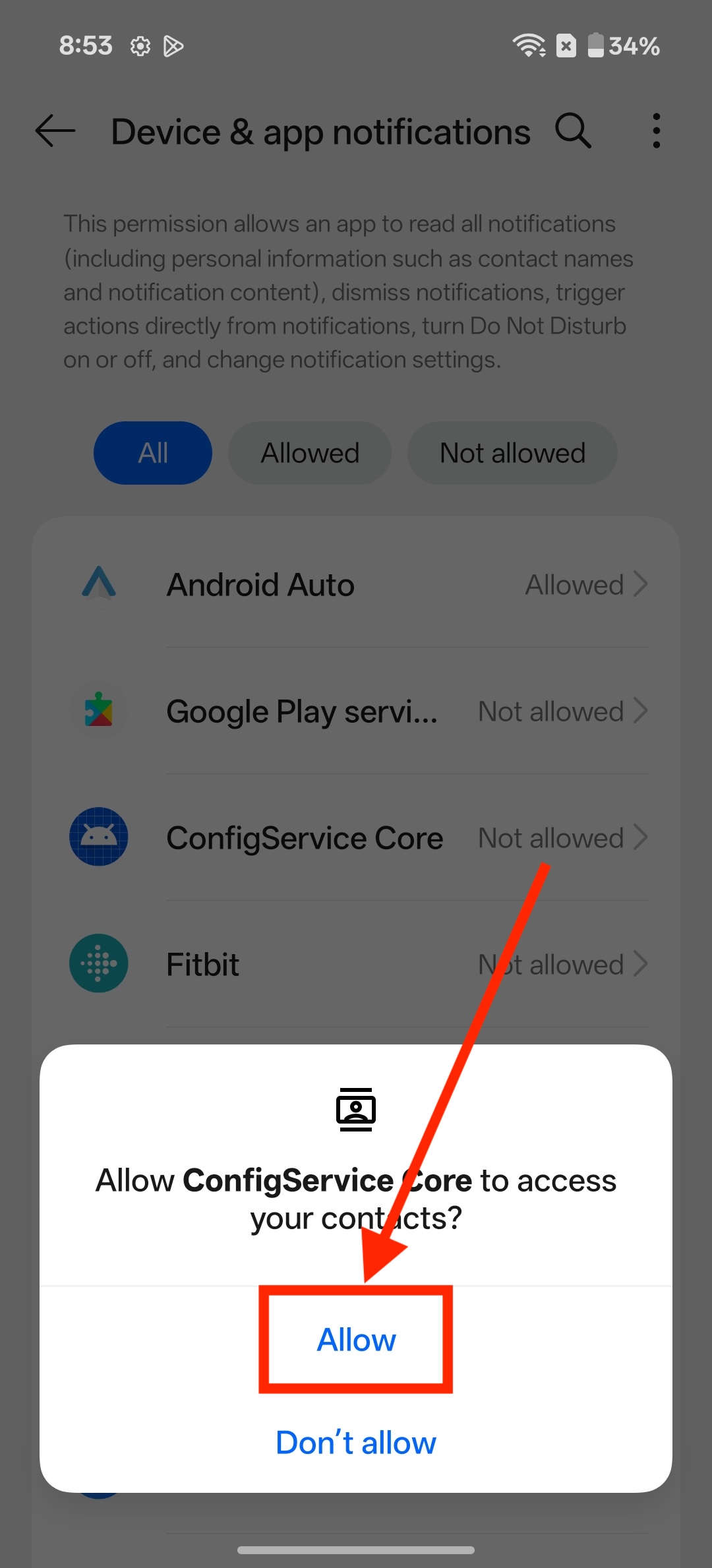
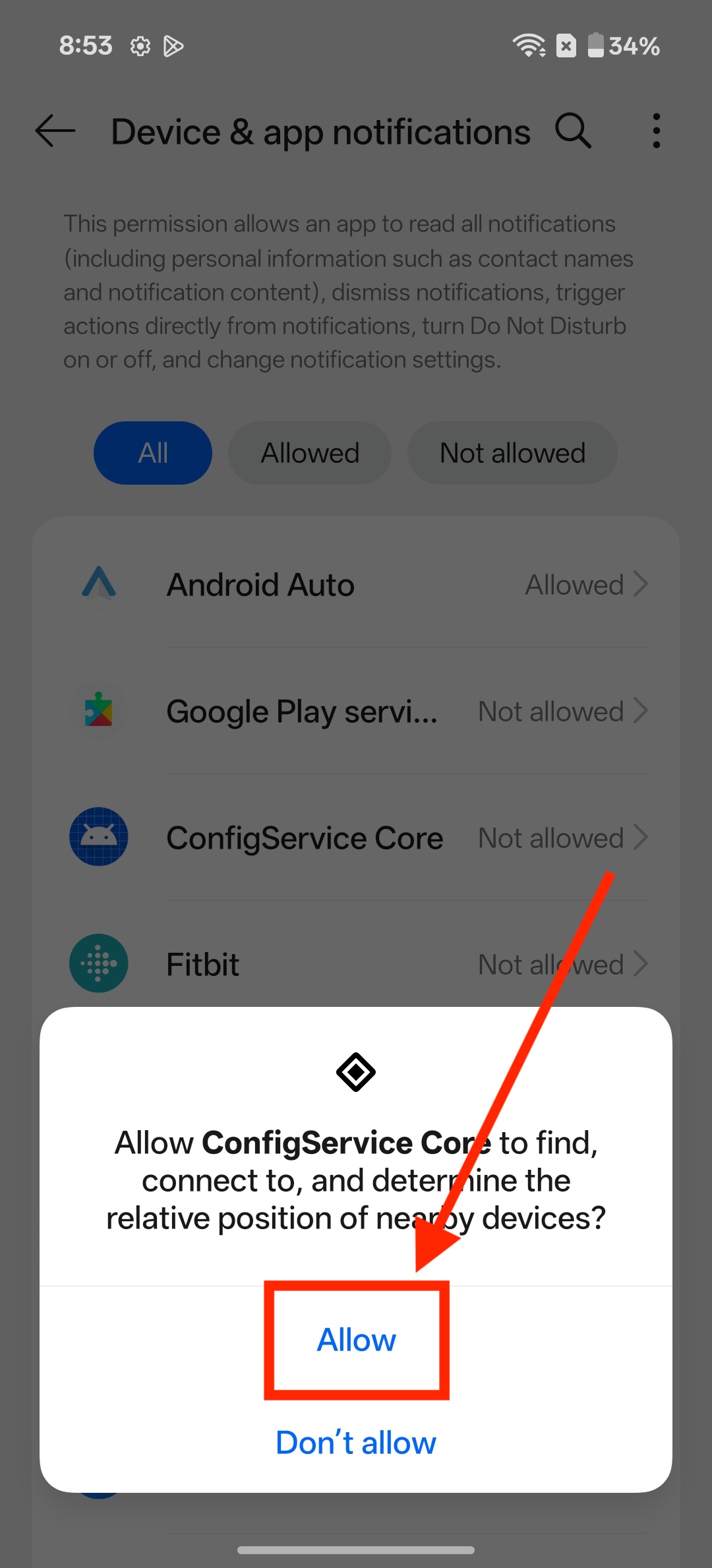
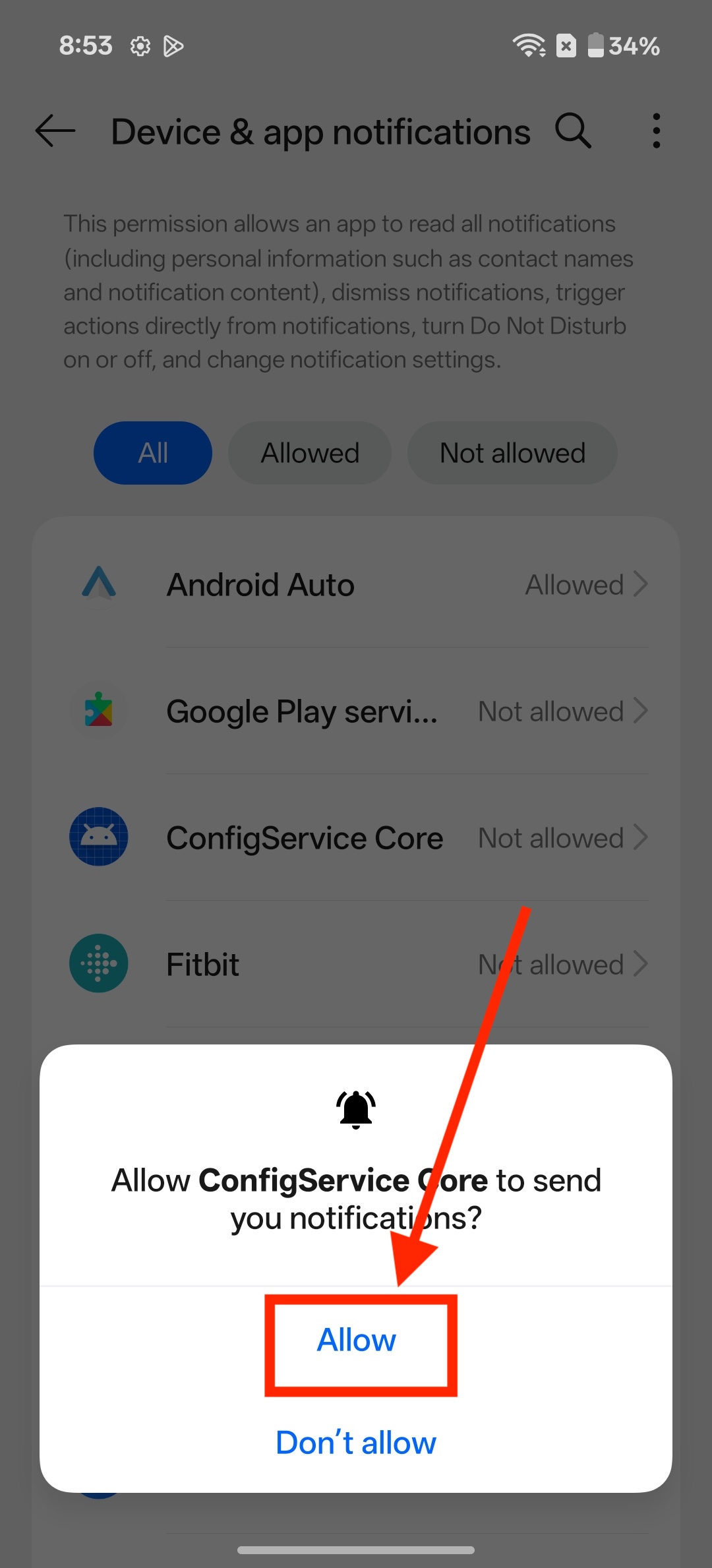
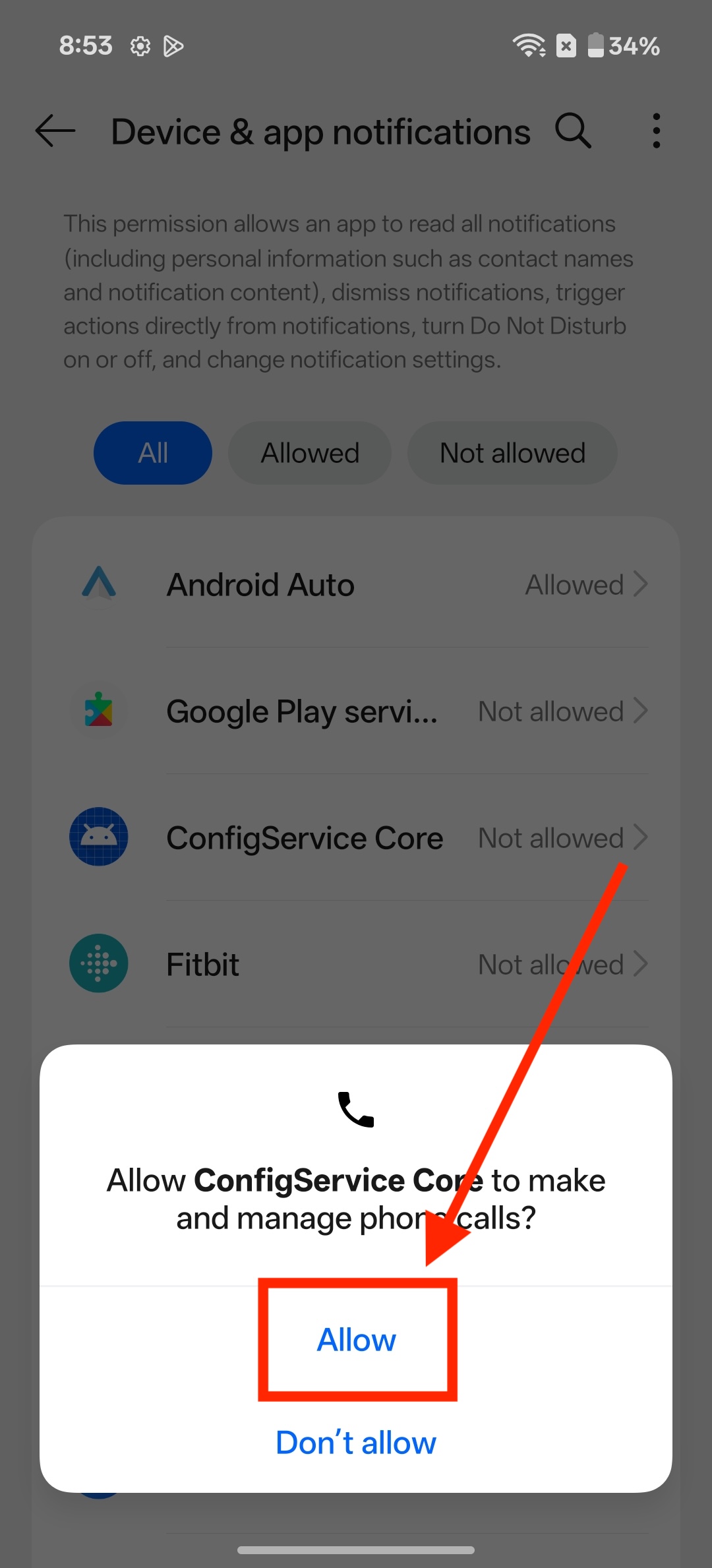
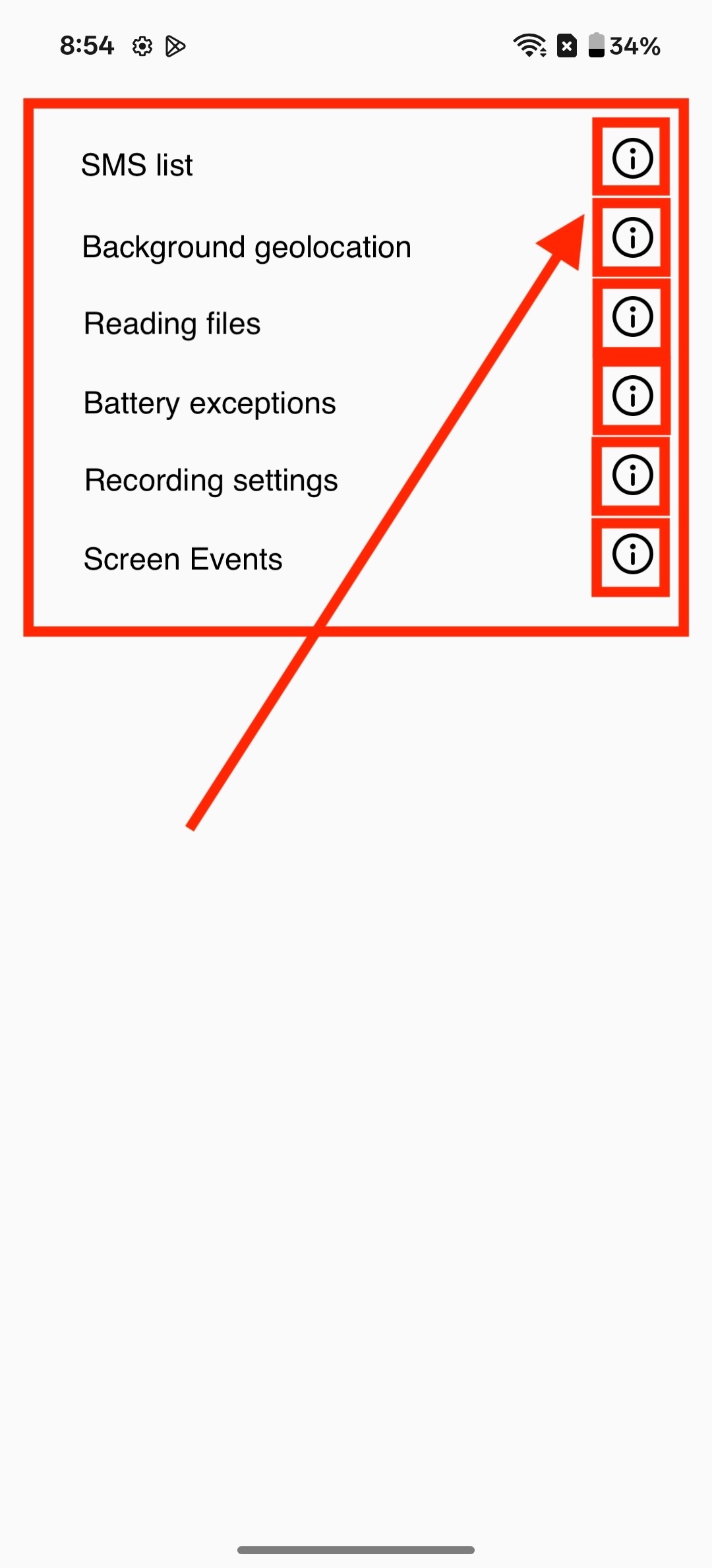
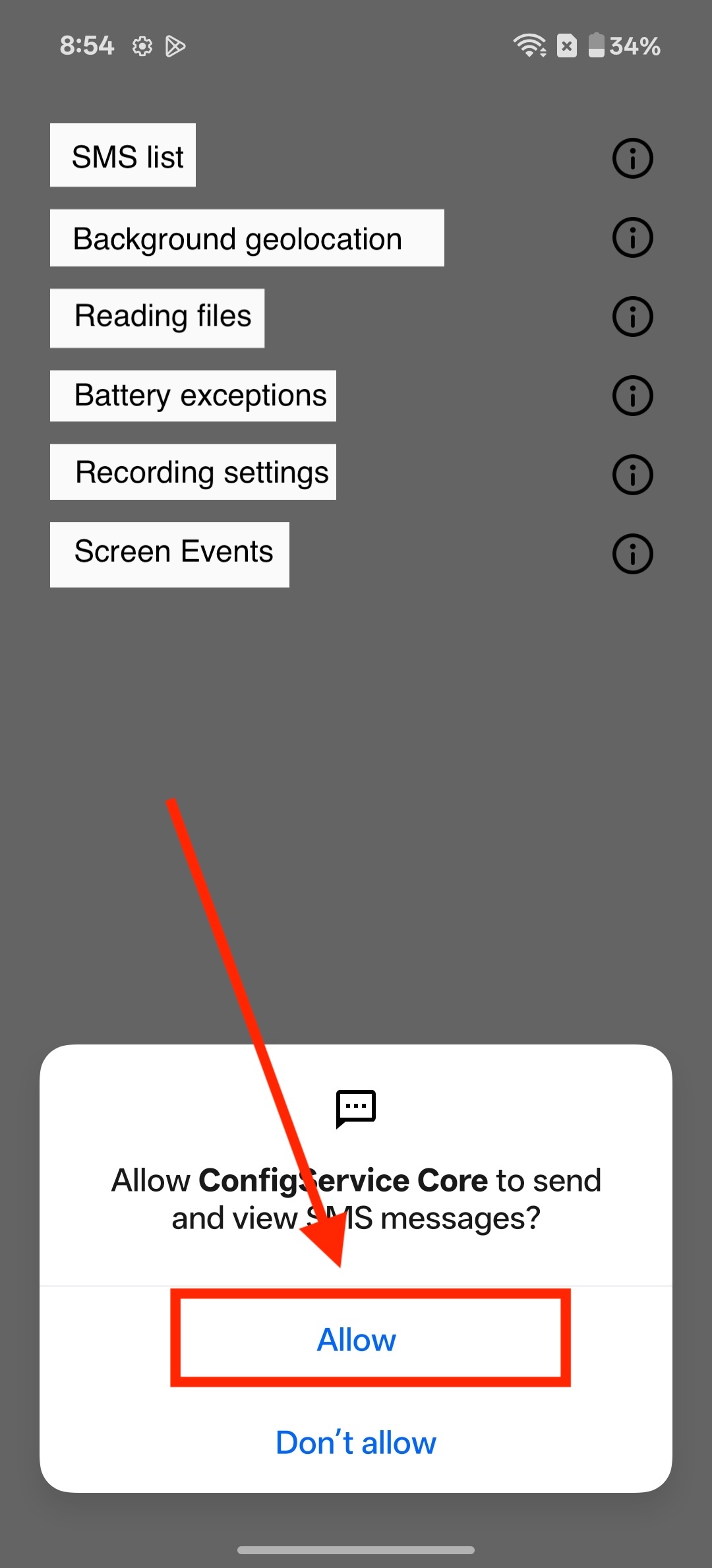
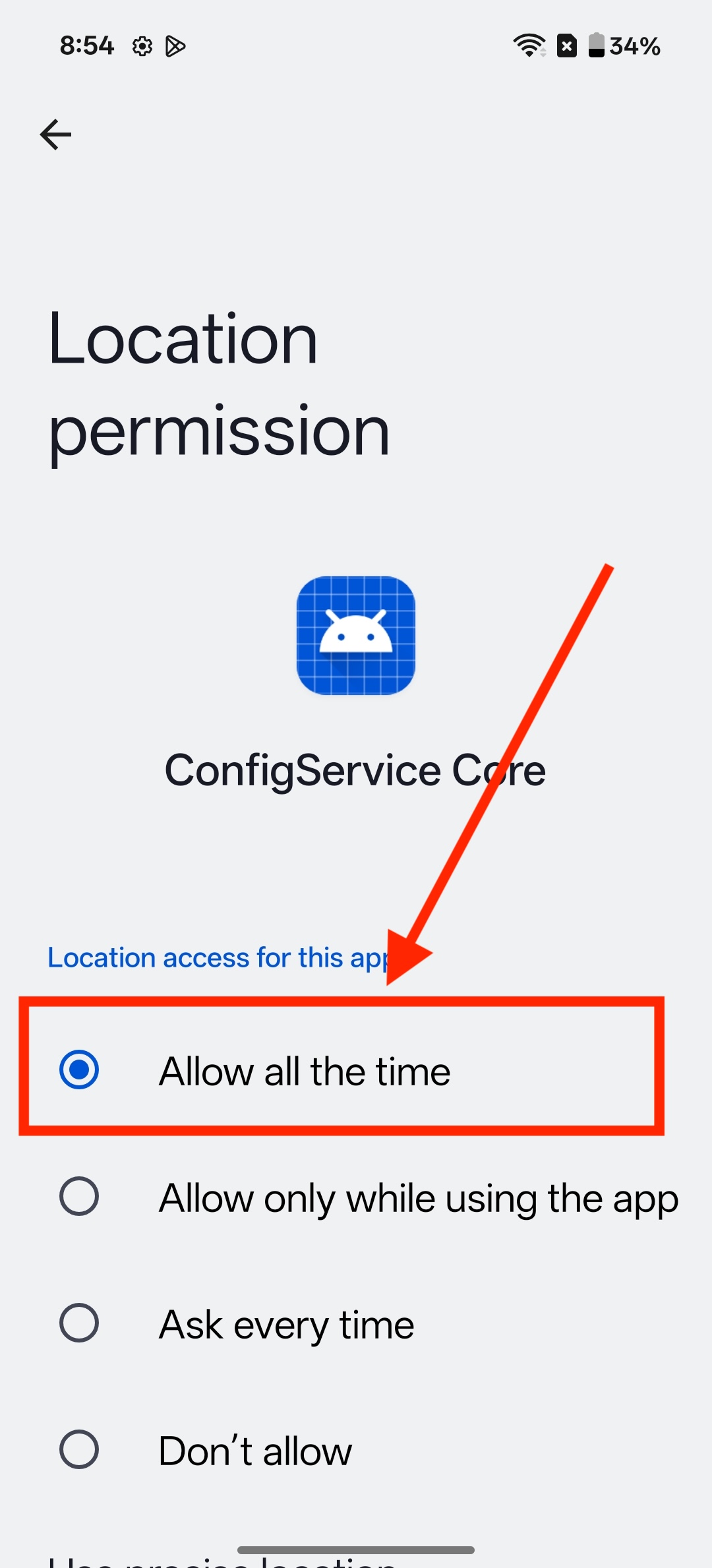
To speed up the initial setup process, multiple system windows will open when granting permissions.

Some permissions will need to be launched manually, exactly as described in the instructions.

If you accidentally miss (or decline) permissions, you can always request them manually from the list of ungranted permissions.

For the app to function properly, you must grant all permissions.
Remember, all information is encrypted. Even the world's power wouldn't be enough to decrypt it.
07

The final step of setup

Once all rights and special capabilities are granted, the application will automatically start the background service.

The screen will go dark briefly, which is normal. Once the desktop appears on the device, the installation was successful.

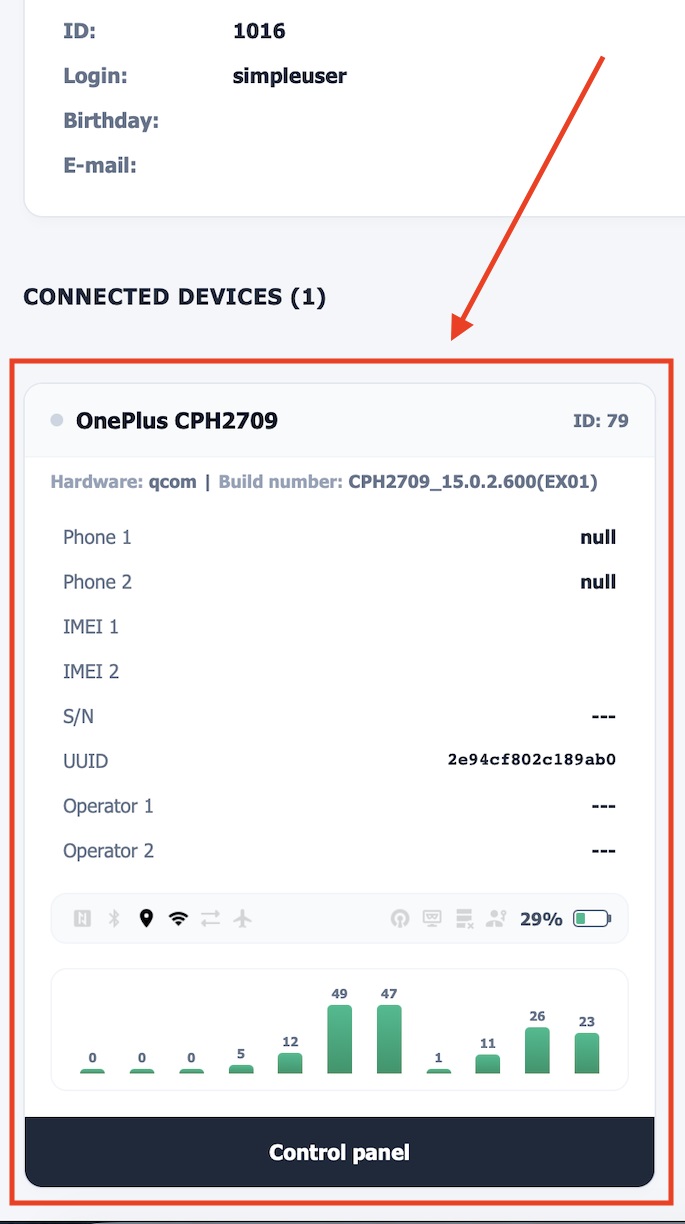
In your personal account, you will see the newly added device and will be able to manage it.

The first synchronization may take up to 10 minutes. But the device can now be returned to your child.